Reports & Analytics
The Weebe vendor dashboard gives you several views for tracking sales, earnings, product health, and payouts — all available directly from seller.weebe.co without any external tools.
Dashboard Summary
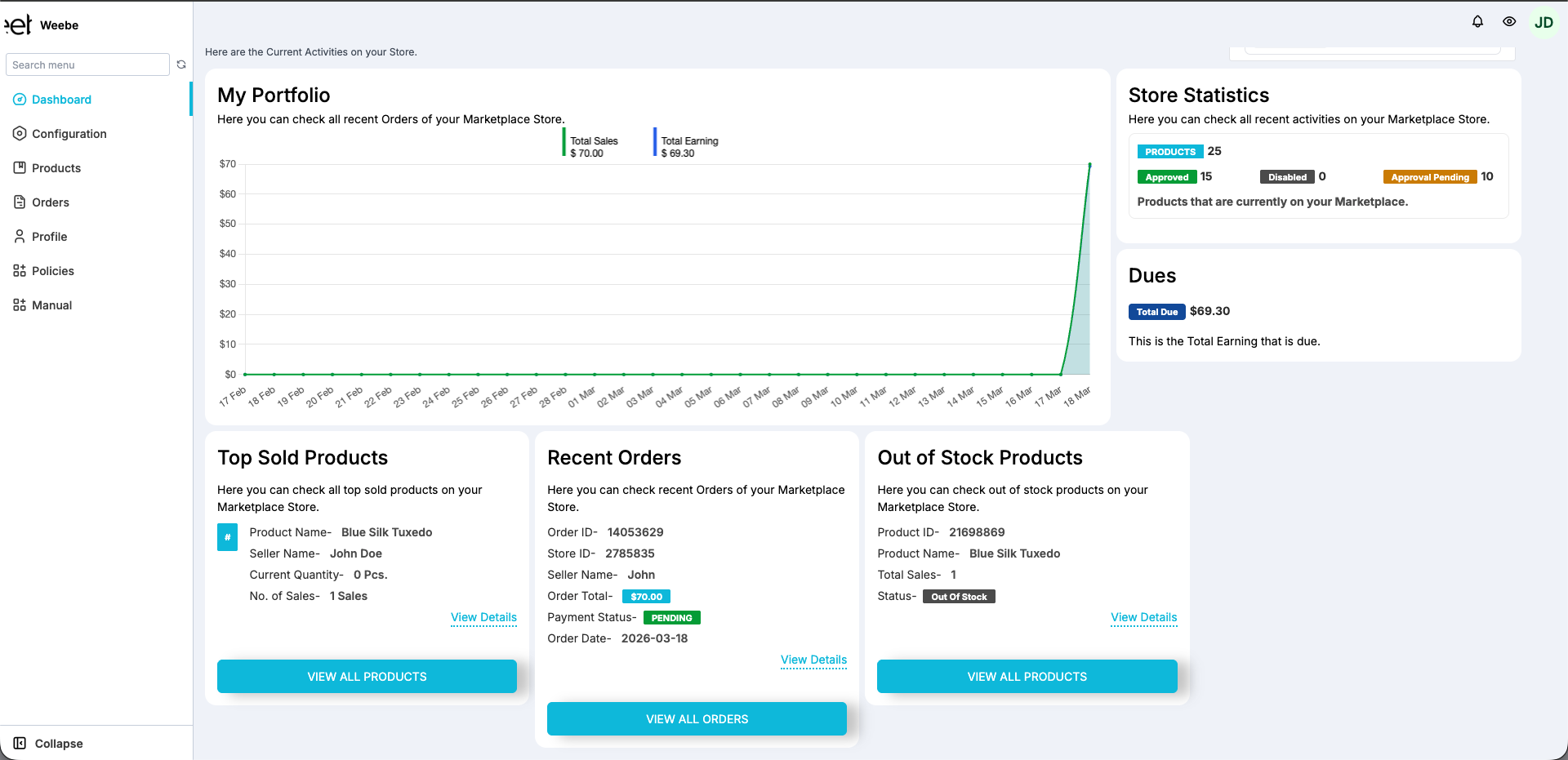
The Dashboard is your at-a-glance reporting view. It refreshes every time you load the page and is divided into five panels.
Sales Graph
The My Portfolio panel charts your order revenue over time. The x-axis spans the current month by default. Use the This Week / This Month / This Year tabs to zoom in or out.
Store Statistics
The Store Statistics panel shows a live breakdown of your product approval statuses:
| Metric | What it means |
|---|---|
| Products | Total products in your catalogue |
| Approved | Live on the Weebe marketplace |
| Disapproved | Rejected — need review and resubmission |
| Approval Pending | Submitted, awaiting Weebe review |
Filter by Overall · This Week · This Month · This Year to see activity within a specific period.
Earnings Report
The Dues panel is your primary financial summary:
| Field | Description |
|---|---|
| Total Earning | Cumulative revenue from all fulfilled orders, after commission |
| Total Due | Amount owed to you, pending the next weekly payout |
| Commission | Platform commission deducted to date |
Use the From / To date pickers to filter by a custom date range — useful for generating monthly or quarterly figures.
Top Sold Products
The Top Sold Products panel lists your best-performing products by total sales count, along with current stock quantity. Use this to identify which lines need restocking or deserve promotion.
Out of Stock Products
The Out of Stock Products panel lists every product currently at quantity = 0. Click View All Products to jump straight to the filtered Products Listing. See Inventory Management for how to restock.
Order Data
Go to Orders → Orders Listing for a full table of all your orders. Each row shows:
- Order ID and Store Order ID
- Date and customer name
- Payment mode and payment status
- Fulfillment status
- Order amount
Use the search and filter controls at the top of the listing to narrow by status, date range, or customer.
Invoice Reports
Go to Orders → Automated Seller Invoice for your full invoice log.
From here you can:
- View all invoices generated for your fulfilled orders
- Download individual invoices as PDFs
- Bulk-generate invoices for a selected date range
- Print invoices directly from the browser
Each invoice includes your business details, the customer's address, an itemised product list, the order total, and the Weebe commission deducted. See Invoice Configuration to update your business address, VAT number, and date format.
Weekly Payout Summary
Every Monday, Weebe sends a payout summary email to your registered account email address. It includes:
- All orders paid out in the previous period
- Invoice numbers for reconciliation
- Total payout amount for that period
If you do not receive a payout email after a week in which you had fulfilled orders, contact seller@weebe.co.
Discount Impact
If your products were included in a Weebe promotion, go to Products → Discount to see how discounts affected your earnings. Your commission is always calculated on the discounted price the customer actually paid.