Adding products via Shopify.
This guide explains how a Weebe seller can connect a Shopify store to Weebe using a Shopify custom app. After the connection is installed, the seller can sync products, variants, inventory, images, pricing, collections, customers, orders, fulfillments, and webhooks.
Before you start
Make sure you have access to:
- Your Shopify account
- The Shopify Dev Dashboard
- The Weebe seller portal
- Your Shopify store admin
- Your Shopify store URL in
your-store.myshopify.comformat
Setup overview
The setup has eight main steps:
- Create a Shopify custom app
- Copy the Weebe App URL and Other URL
- Configure URLs and redirect URLs in Shopify
- Add the required Shopify scopes
- Release the Shopify app version
- Copy the Shopify Client ID and Secret
- Enter the credentials in Weebe and install the app
- Register webhooks for full synchronization
Step 1 — Open the Shopify Dev Dashboard
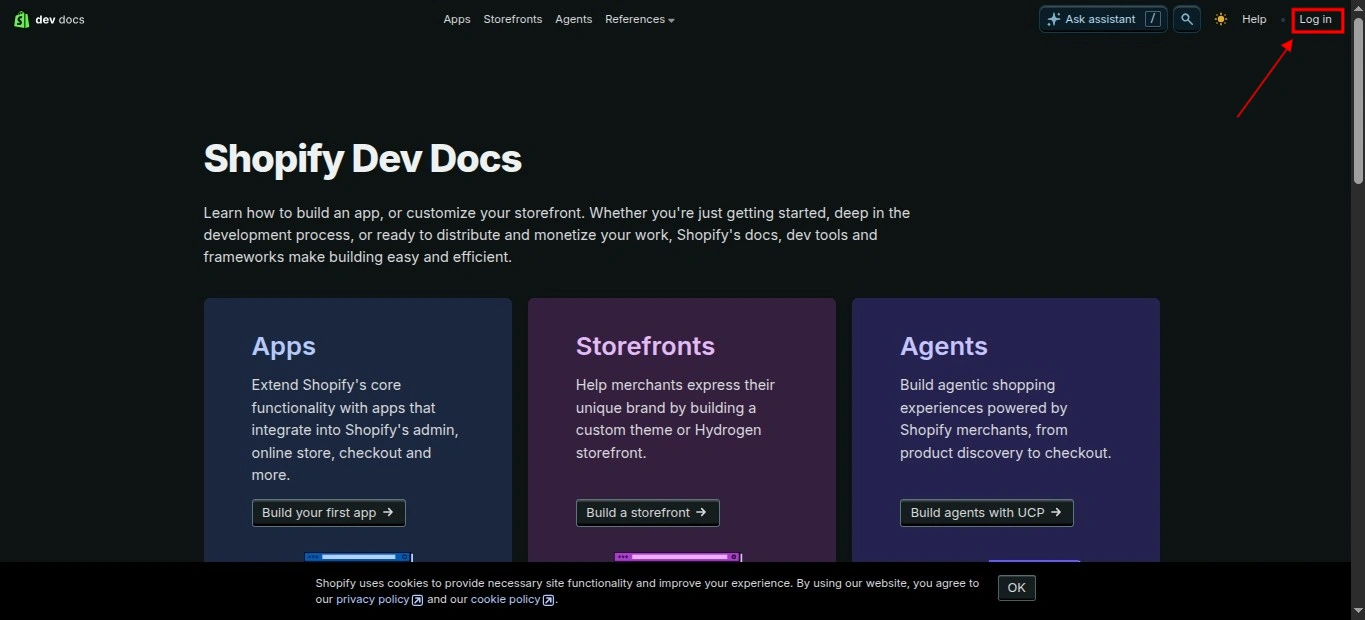
Go to dev.shopify.com and log in with your Shopify account.
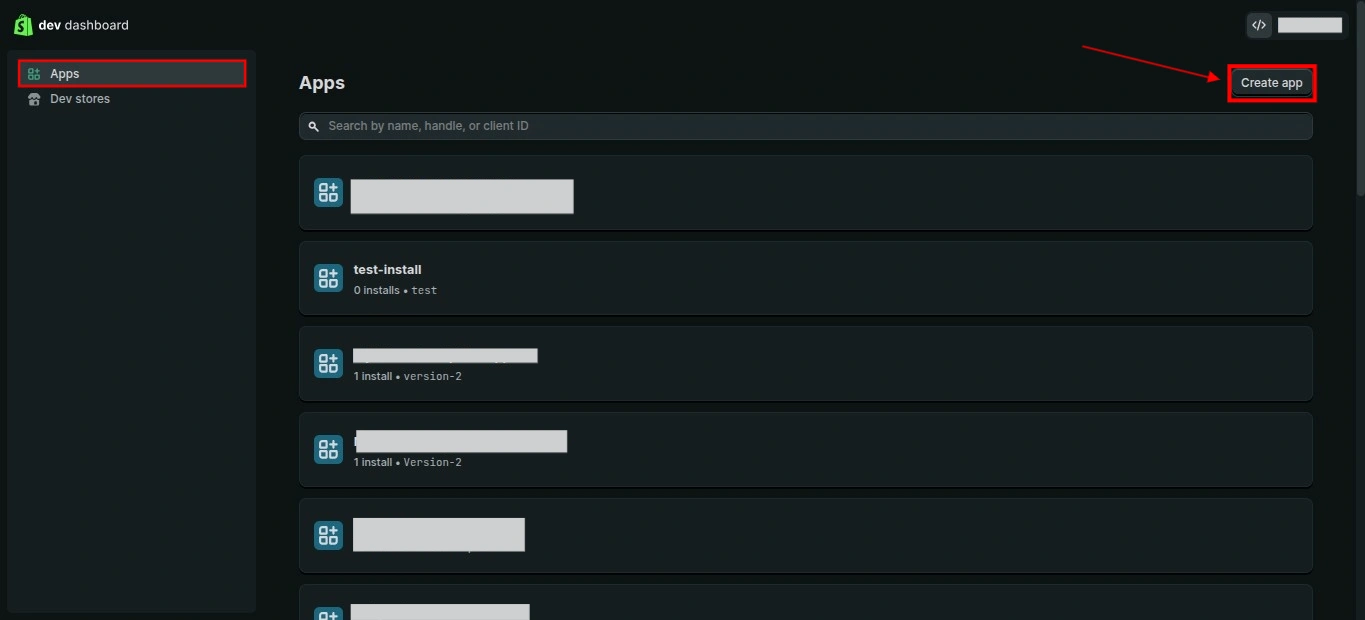
After logging in, click Apps in the left sidebar, then click Create app.
Step 2 — Create the custom app
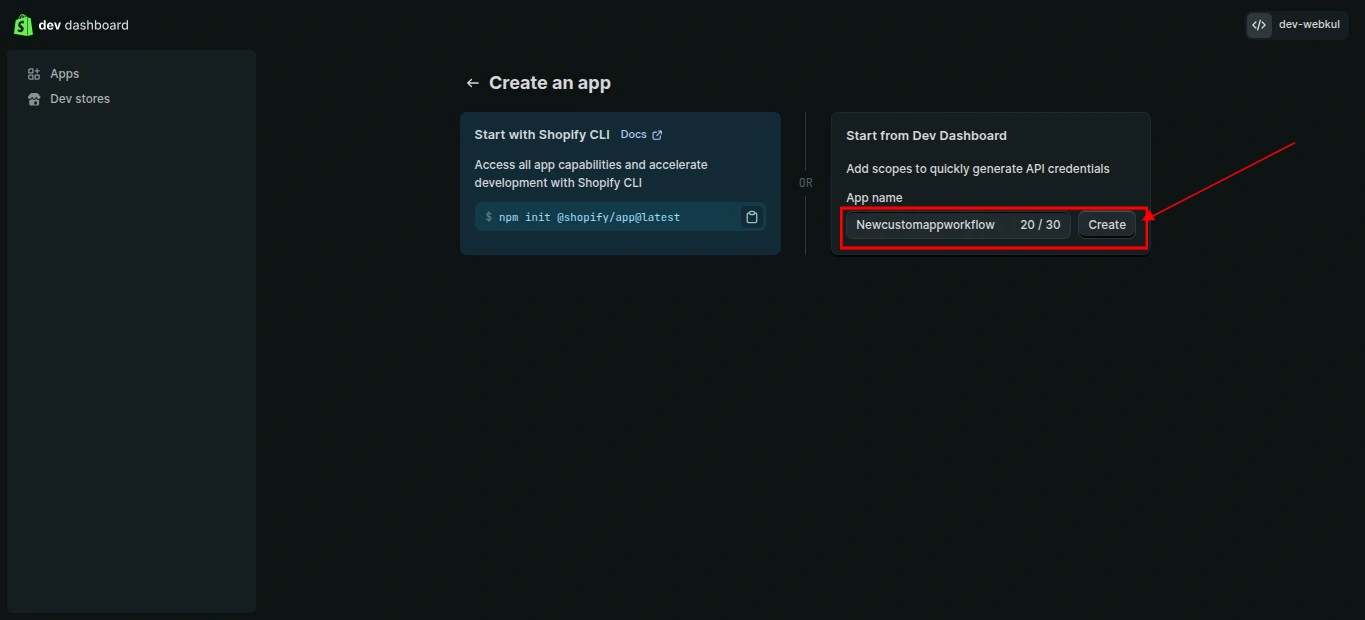
Enter an app name, for example Weebe Connector, then click Create.
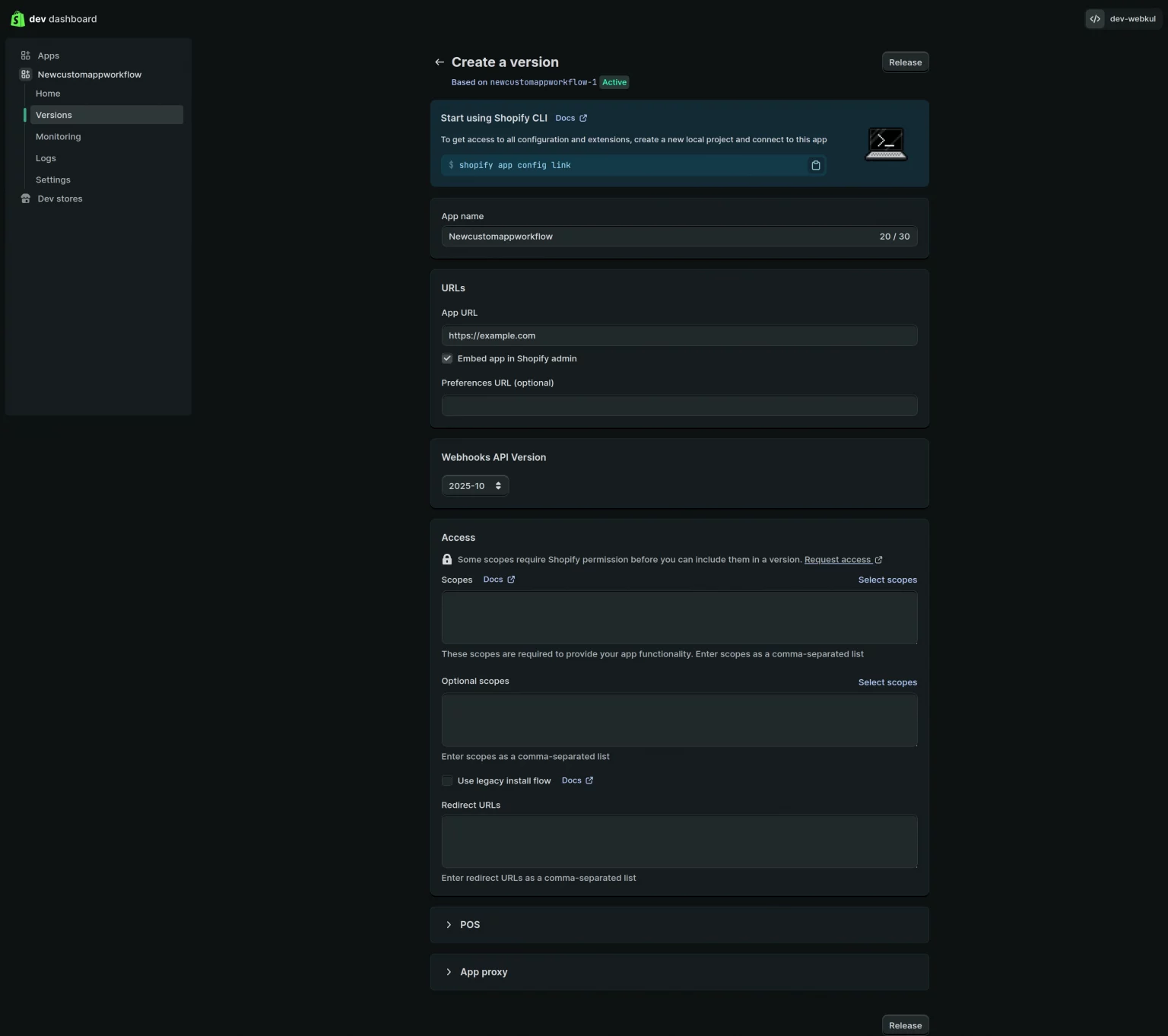
Shopify will redirect you to the Create a version page. This is where you will configure the app URLs, scopes, and redirect URLs.
Step 3 — Copy the Weebe App URL and Other URL
Open the Weebe seller portal:
Then go to:
Configuration → Shopify Configuration
Under Custom App Type, select New Custom App.
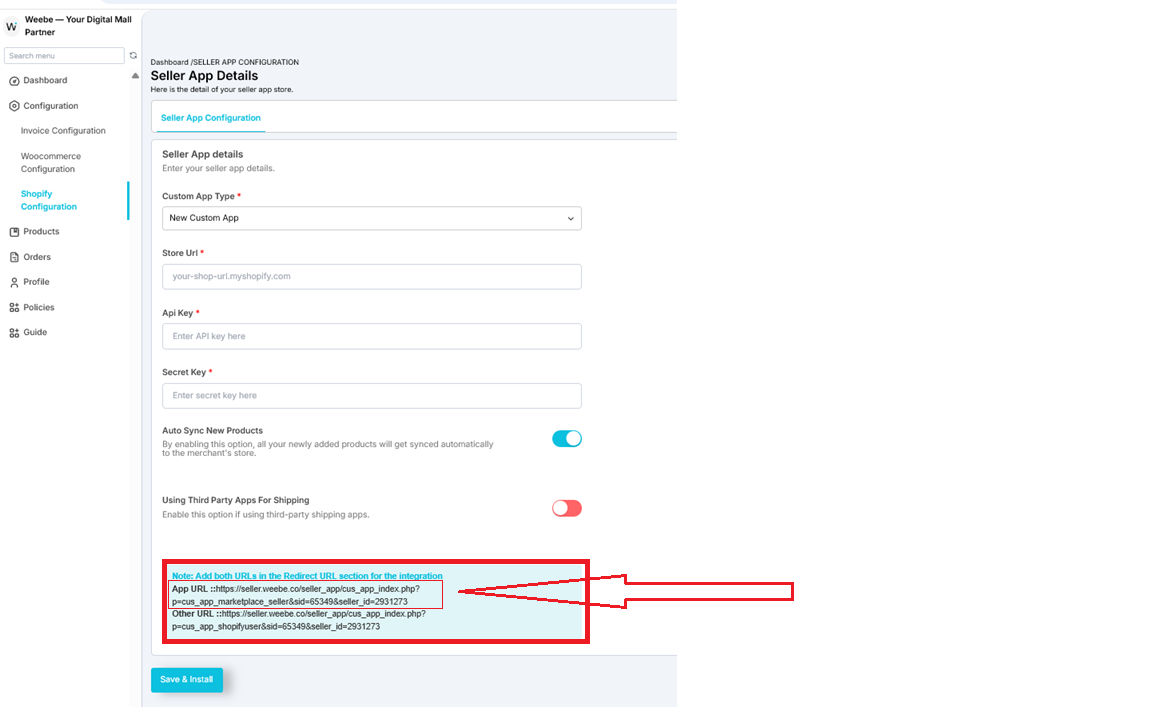
Weebe will show the URLs needed for the Shopify app setup:
- App URL
- Other URL
Copy these URLs because you will paste them into Shopify in the next steps.
Step 4 — Configure the Shopify app URLs
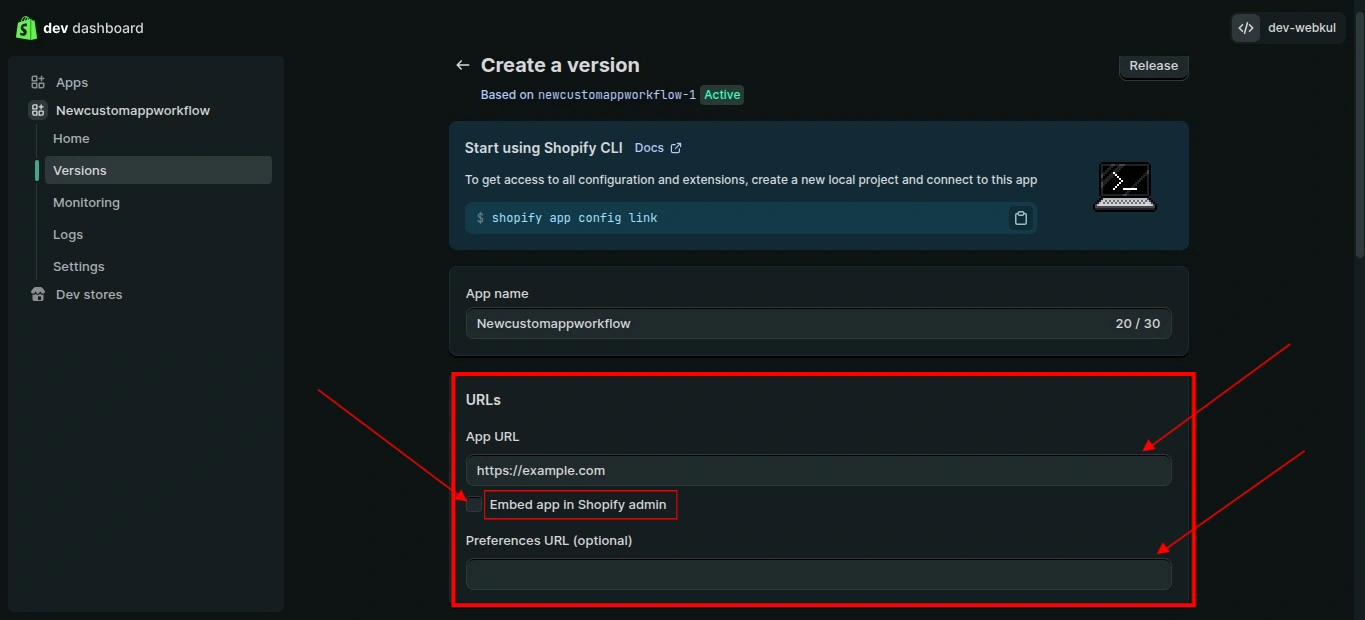
Go back to the Shopify Dev Dashboard and open the app version page.
In the URLs section:
- Paste the App URL from Weebe into the App URL field.
- Uncheck Embed app in Shopify admin.
- Do not change the Webhooks API version.
Step 5 — Add redirect URLs
Return to the Weebe seller portal and copy the Other URL from the Shopify Configuration screen.
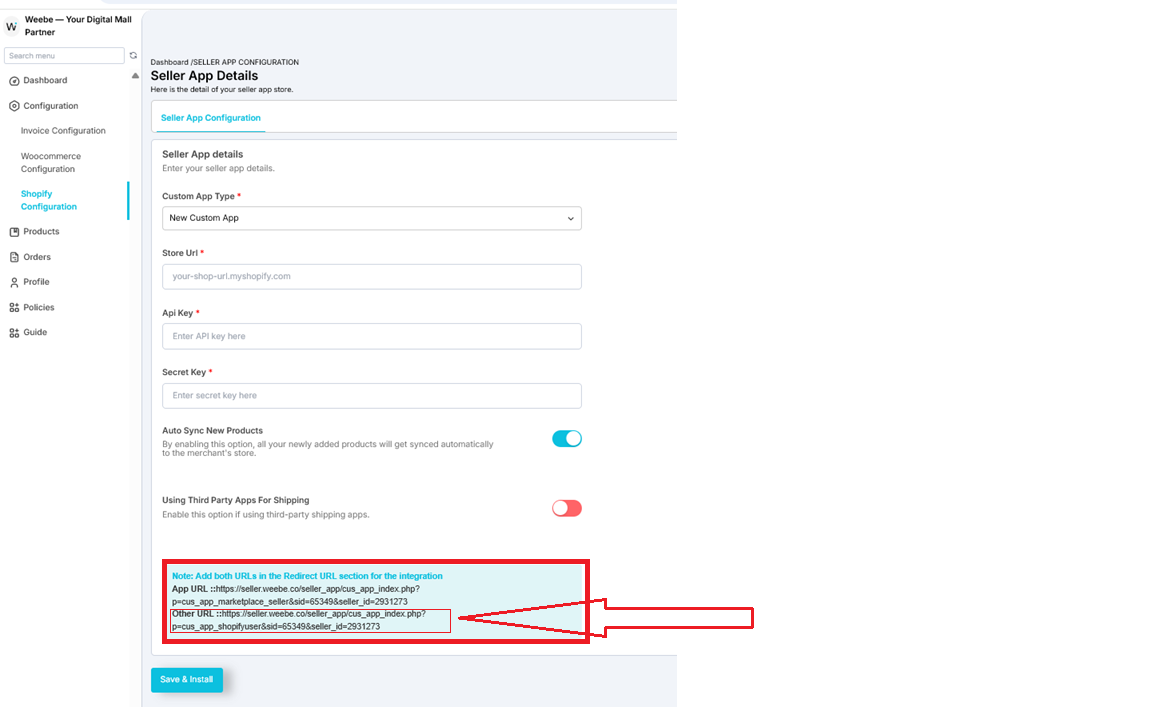
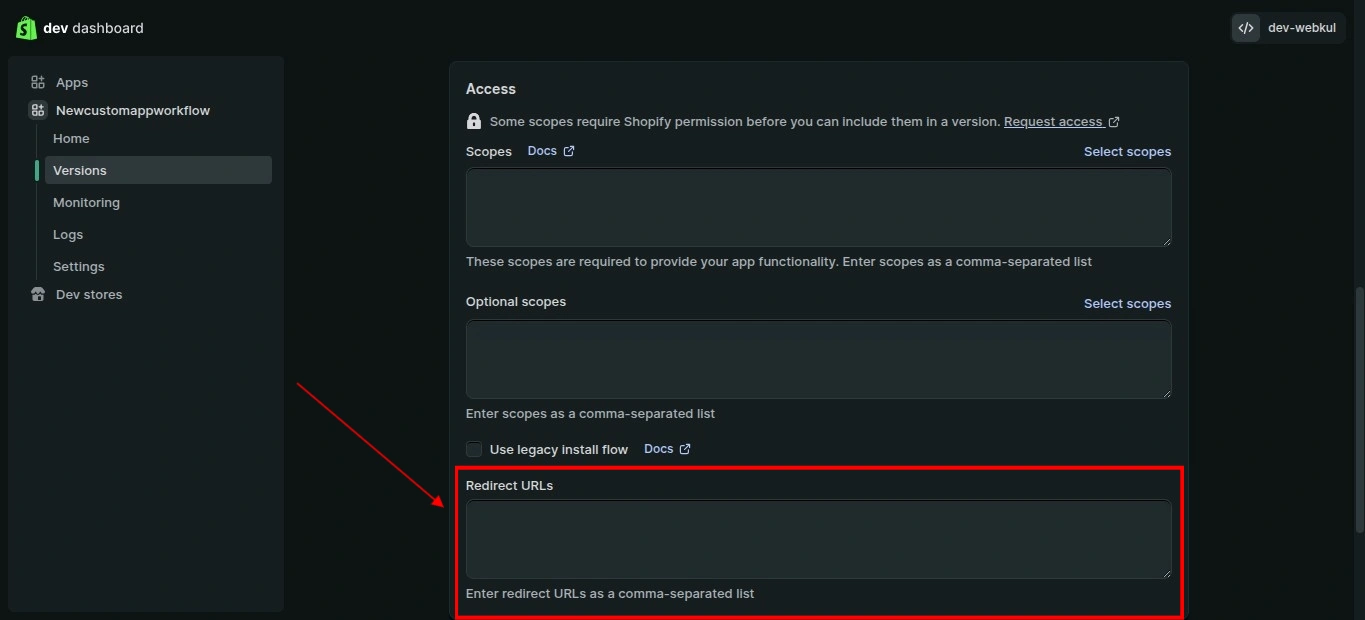
In Shopify, paste the Weebe URLs into the Redirect URLs field.
Use both:
- The App URL
- The Other URL
If there is more than one URL, separate each URL with a comma.
Step 6 — Add the required scopes
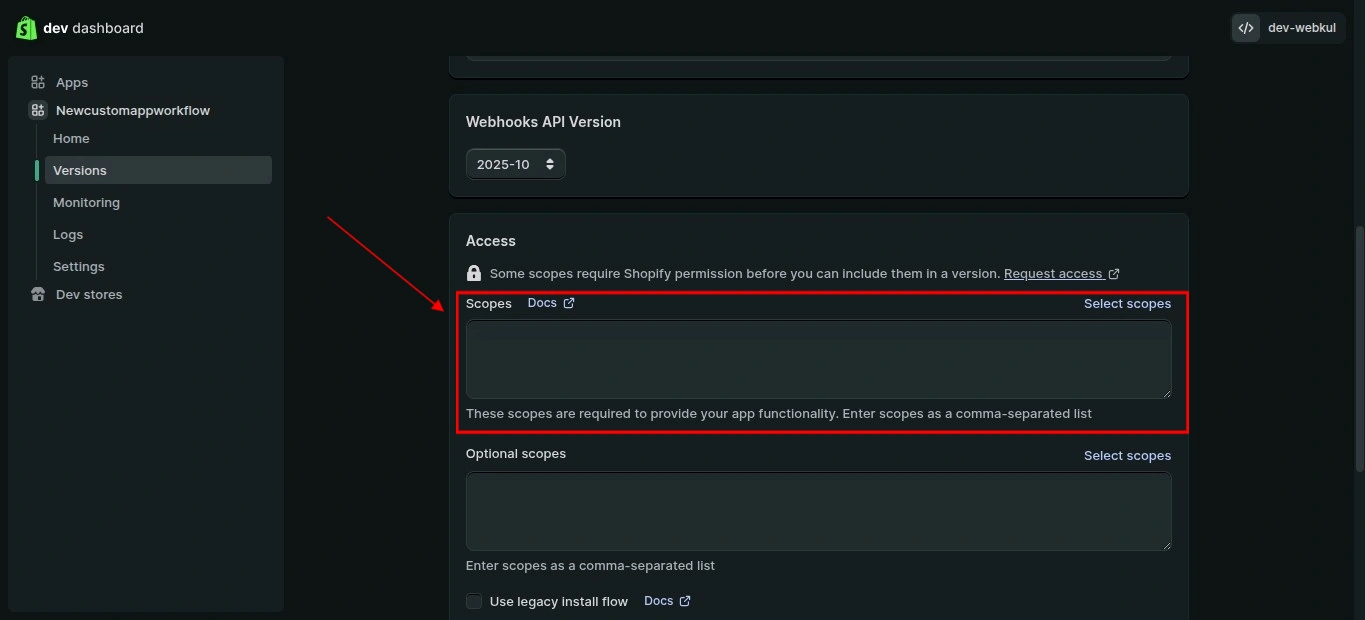
In the Shopify app version page, scroll to the Access section.
Paste the following scopes into the Scopes field:
write_assigned_fulfillment_orders,read_assigned_fulfillment_orders,read_fulfillments,write_fulfillments,read_inventory,write_inventory,read_locations,read_orders,write_orders,read_products,write_products,read_markets_home,read_customers,write_customers
Step 7 — Release the app version
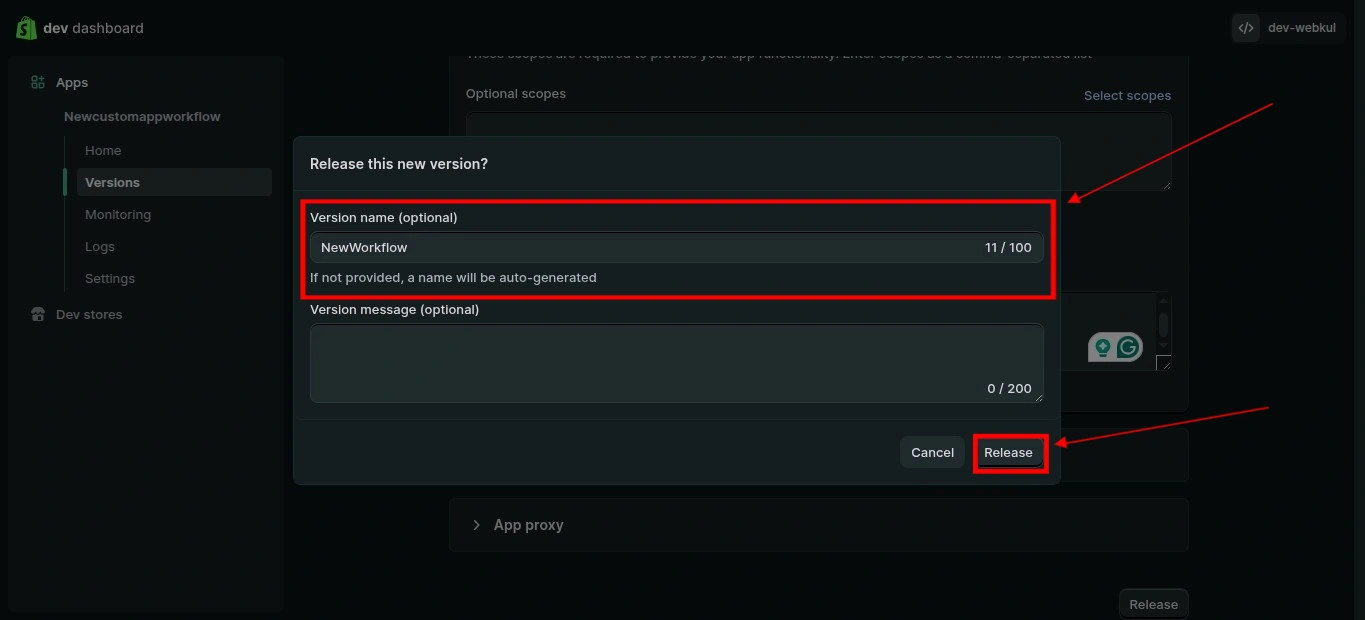
After adding the URLs, redirect URLs, and scopes, click Release.
Shopify may show a version name field. You can enter a name or leave it blank. If left blank, Shopify will auto-generate a version name.
Click Release again to confirm.
Step 8 — Copy the Client ID
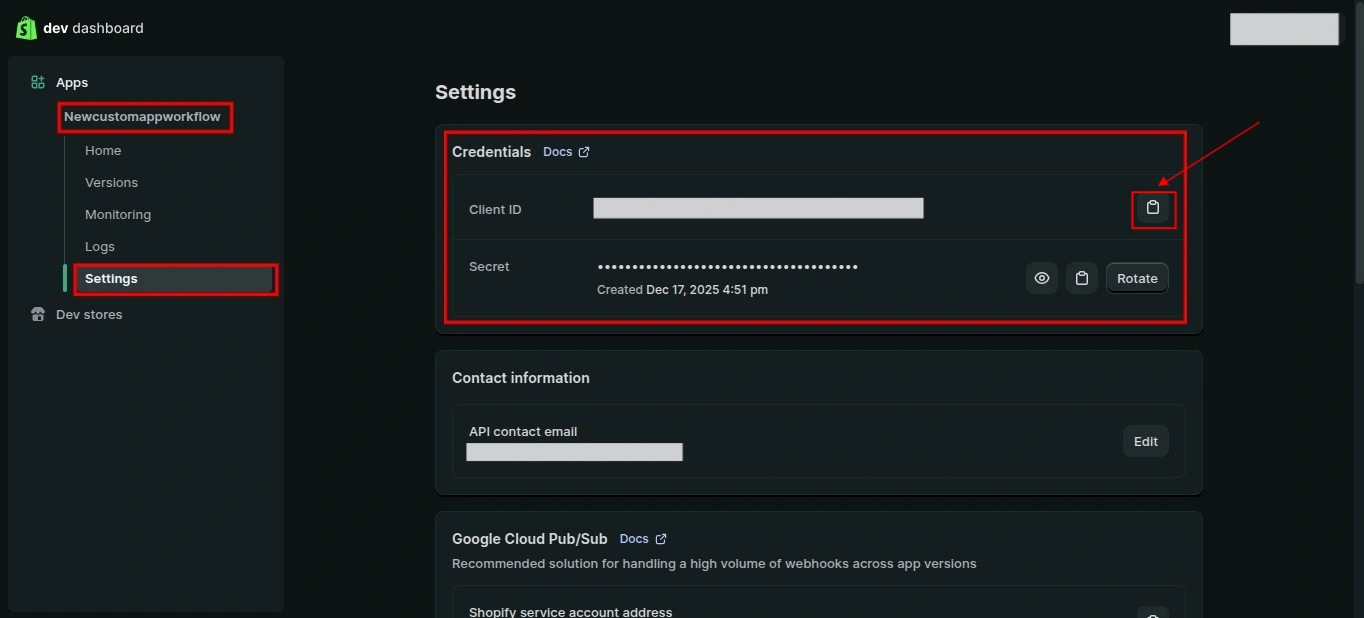
In Shopify, open the app you created and go to Settings.
Under Credentials, copy the Client ID.
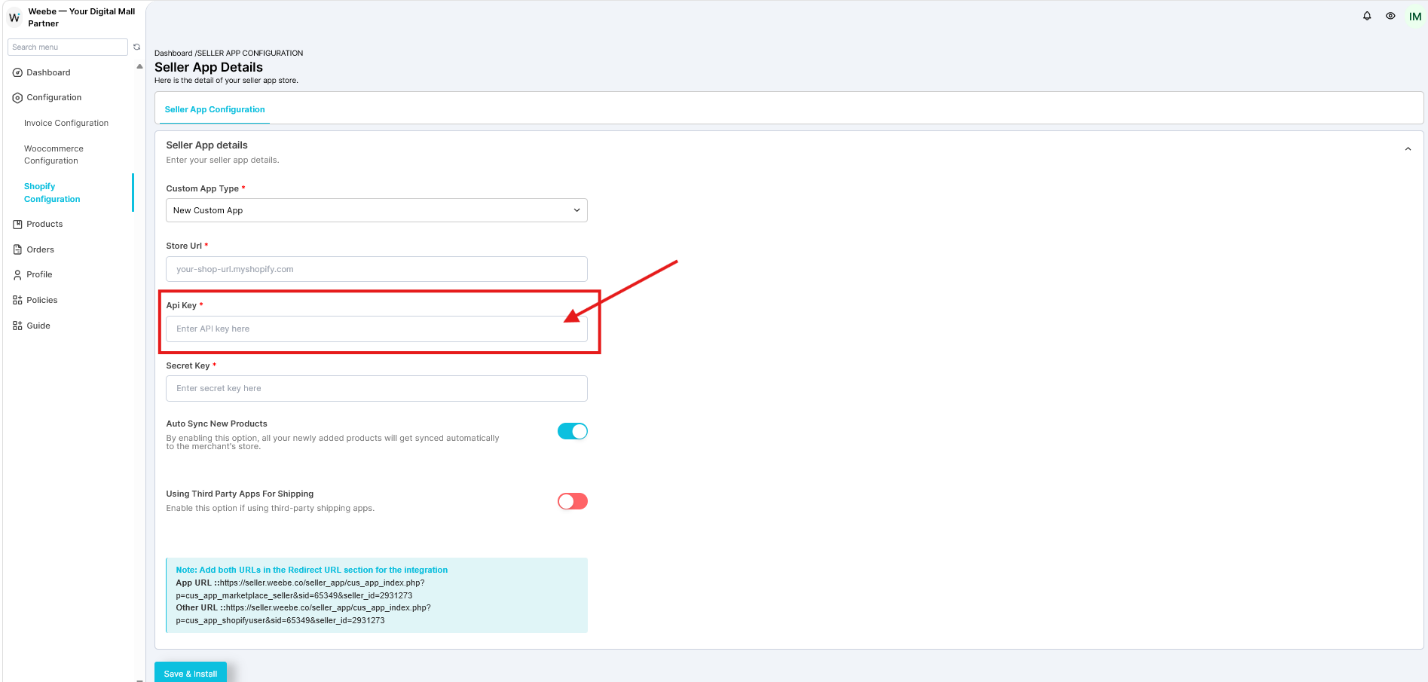
Go back to Weebe:
Configuration → Shopify Configuration
Paste the Shopify Client ID into the Api Key field.
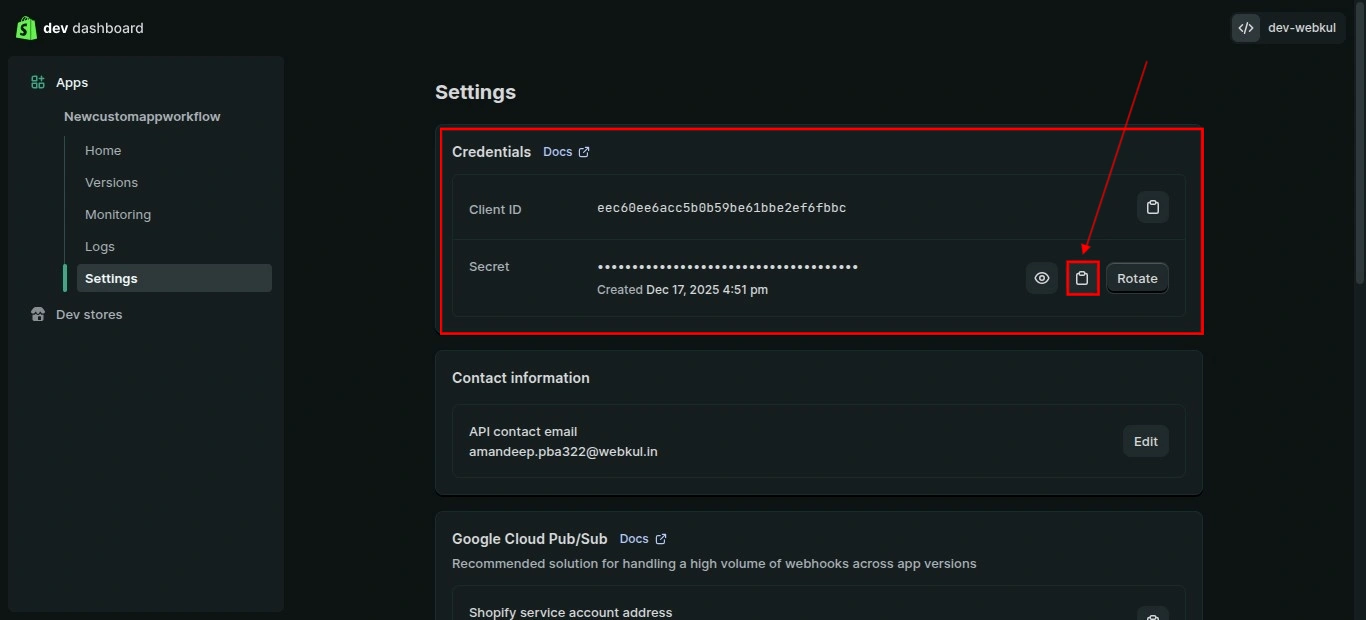
Step 9 — Copy the Secret
In Shopify, copy the Secret from the Credentials section.
The Secret is sensitive. Do not share it publicly or store it in an unsecured place.
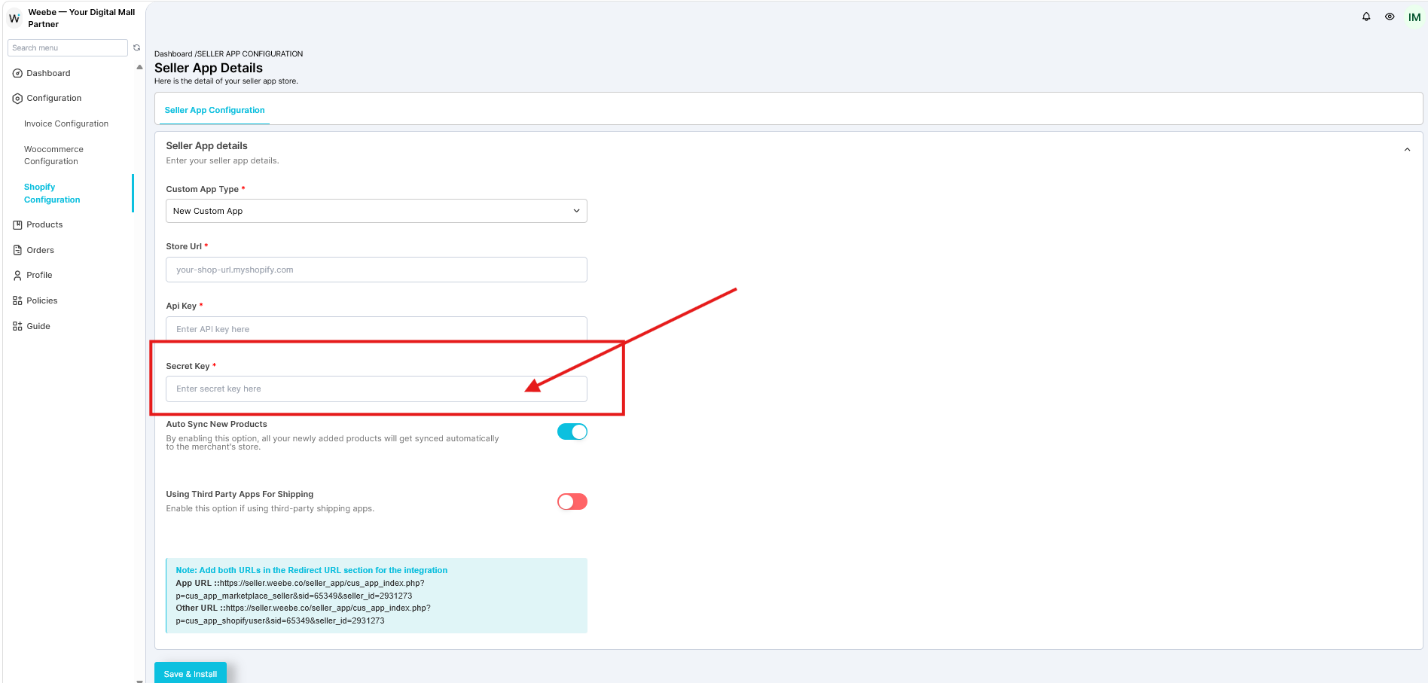
Go back to Weebe and paste the Shopify Secret into the Secret Key field.
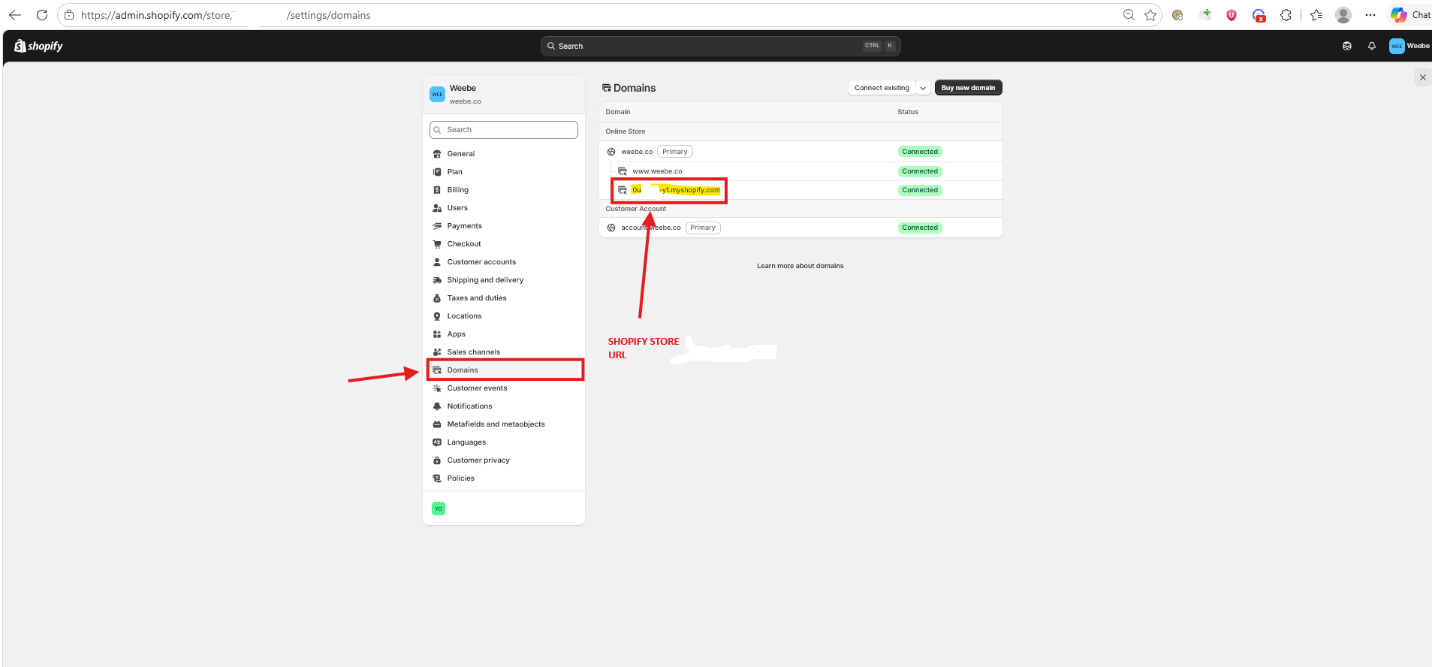
Step 10 — Find your Shopify Store URL
Open your Shopify admin:
Go to Domains.
Under Online Store, copy your Shopify URL in this format:
your-store.myshopify.com
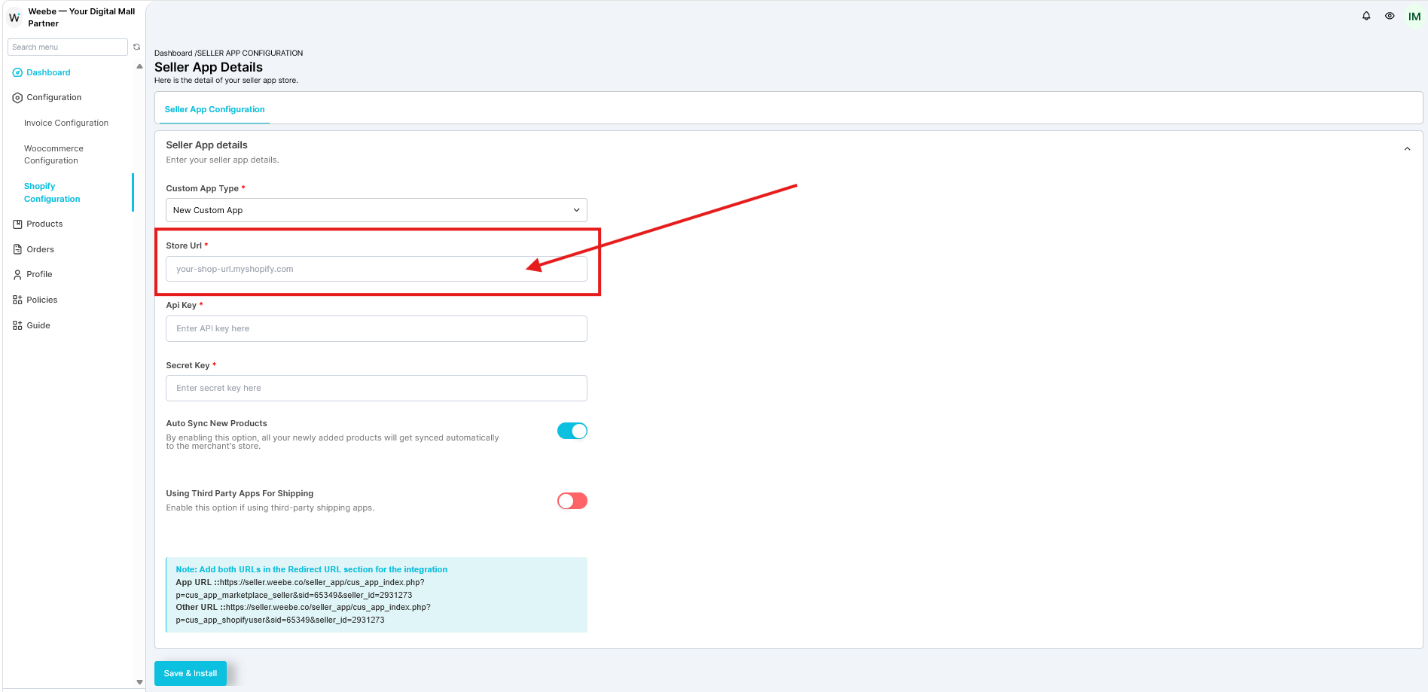
Paste this URL into the Store URL field in Weebe.
Step 11 — Save and install
In Weebe, click Save & Install.
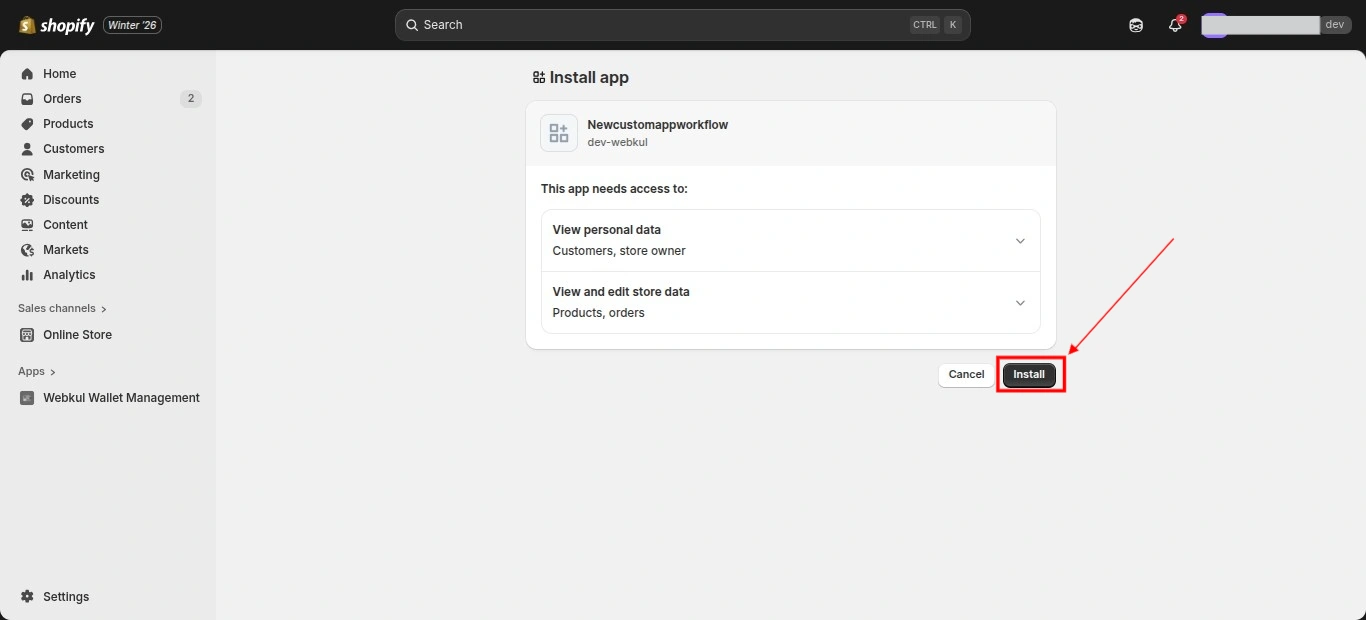
You will be redirected to your Shopify store to approve the app installation.
Click Install.
Step 12 — Register webhooks
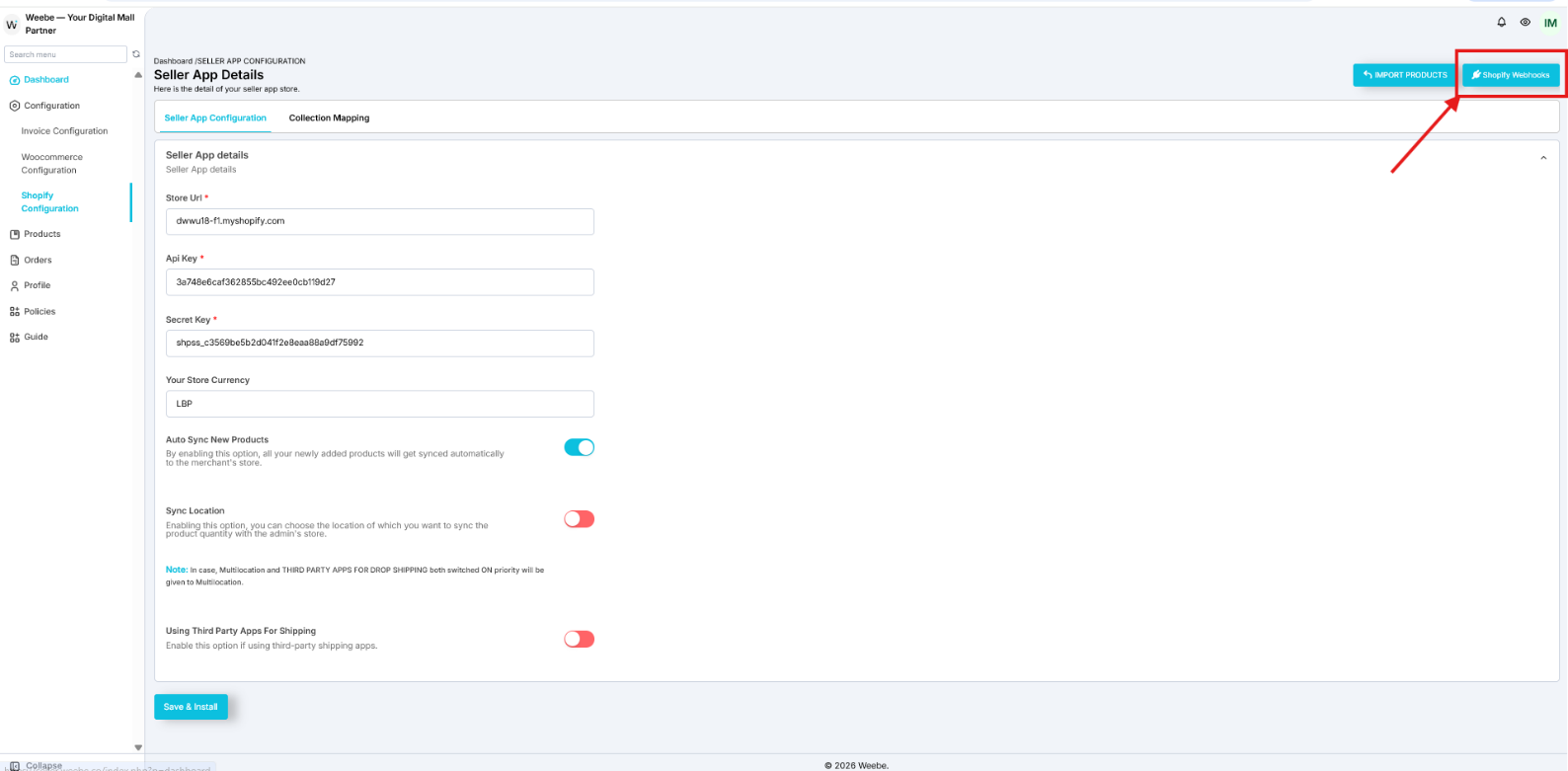
After the app is installed, return to the Weebe seller portal.
Go to:
Seller Panel → Shopify Configuration
Click Shopify Webhooks.
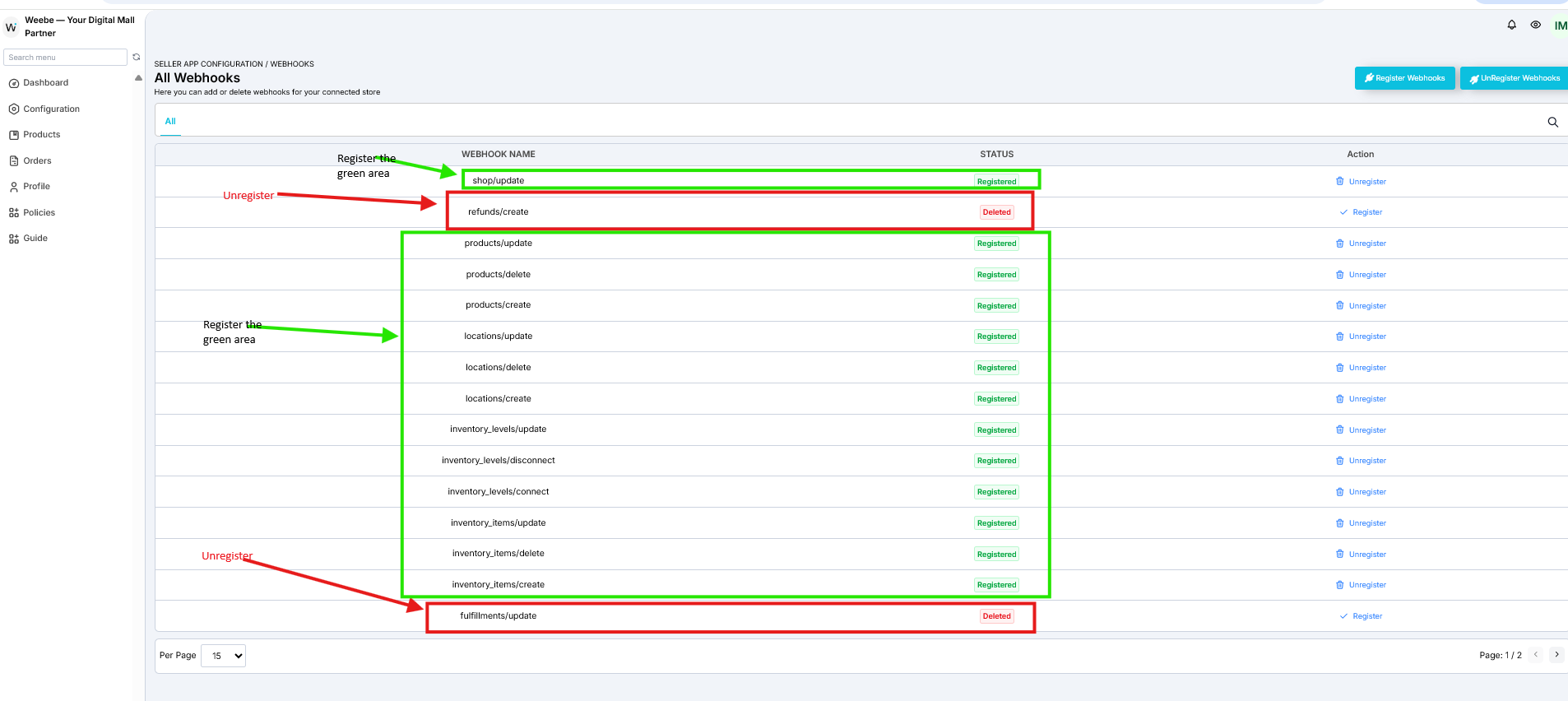
The seller should register the available webhooks to enable synchronization.
Register all webhooks except:
- Refunds/Create
- Fulfillments/Update
These two should remain unregistered.
Step 13 — Import products
After the app is installed and configured, go to the seller app details page and click IMPORT PRODUCTS.
You can import products using one of these methods:
| Method | Description |
|---|---|
| Select Duration | Imports products created or updated between selected dates. |
| Using Product ID's | Imports specific Shopify products by product ID. You can enter one ID or multiple IDs separated by commas. |
| By Handle/Slug | Imports a product using its Shopify product handle. |
After starting the import, Weebe will process the products in the background.
What syncs from Shopify to Weebe
The Shopify connector can sync:
| Data | Notes |
|---|---|
| Products | Active Shopify products can be imported into Weebe. |
| Variants | Product variants sync with the product. |
| Inventory | Inventory quantity and tracking status sync from Shopify. |
| Images | Product images are imported from Shopify. |
| Collections | Shopify collections can be used for category mapping. |
| Meta fields | Product meta fields can be imported. |
| Pricing | Shopify Price is used as the selling price. Compare At Price is used as the original crossed-out price. |
| Customers | Customer data is available through the configured scopes. |
| Orders | Order data is available through the configured scopes. |
| Fulfillments | Fulfillment data is available through the configured scopes. |
Shopify product status rules
| Shopify status | Weebe behavior |
|---|---|
| Active | Product can be imported and submitted for approval. |
| Draft | Product is not synced. |
| Archived | Product is removed or kept inactive on Weebe. |
| Out of stock | Product may be hidden from buyers depending on inventory settings. |
Pricing rule
Before syncing products, make sure your Shopify prices are set as TTC, meaning after-tax prices.
Weebe uses:
- Price as the selling price
- Compare At Price as the original crossed-out price
Do not use pre-tax HT prices.
Troubleshooting
The app install fails
Check the following:
- The App URL in Shopify exactly matches the App URL shown in Weebe.
- The Redirect URLs in Shopify include both the App URL and Other URL.
- URLs are separated by commas only.
- Embed app in Shopify admin is unchecked.
- The Shopify app version has been released.
Products are not appearing in Weebe
Check the following:
- The Shopify product is Active.
- The product is not Draft or Archived.
- The product has inventory available.
- The import has completed.
- The required scopes were added correctly.
- Webhooks are registered correctly.
Sync is incomplete
Go to Shopify Configuration → Shopify Webhooks and check that the required webhooks are registered.
Keep these two unregistered:
- Refunds/Create
- Fulfillments/Update
Prices look wrong
Check that Shopify prices are entered as TTC after-tax prices.
Also confirm:
- Shopify Price is the selling price.
- Shopify Compare At Price is the original crossed-out price.
Final checklist
Before considering the Shopify connector setup complete, confirm that:
- The Shopify custom app was created.
- The App URL was added in Shopify.
- Embed app in Shopify admin was unchecked.
- The Other URL was added to Redirect URLs.
- All required scopes were added.
- The app version was released.
- The Client ID was copied into Weebe as the Api Key.
- The Secret was copied into Weebe as the Secret Key.
- The Shopify Store URL was added in
your-store.myshopify.comformat. - The app was installed from Shopify.
- Shopify Webhooks were reviewed and registered.
- Products were imported successfully.