Manual Product Upload
Add products one at a time directly in your Weebe dashboard. Best for small catalogues or when you need full control over each product's details.
Accessing the Product Form
- Go to Products → Products Listing in the left sidebar
- Click the + Add Product button (top-right)
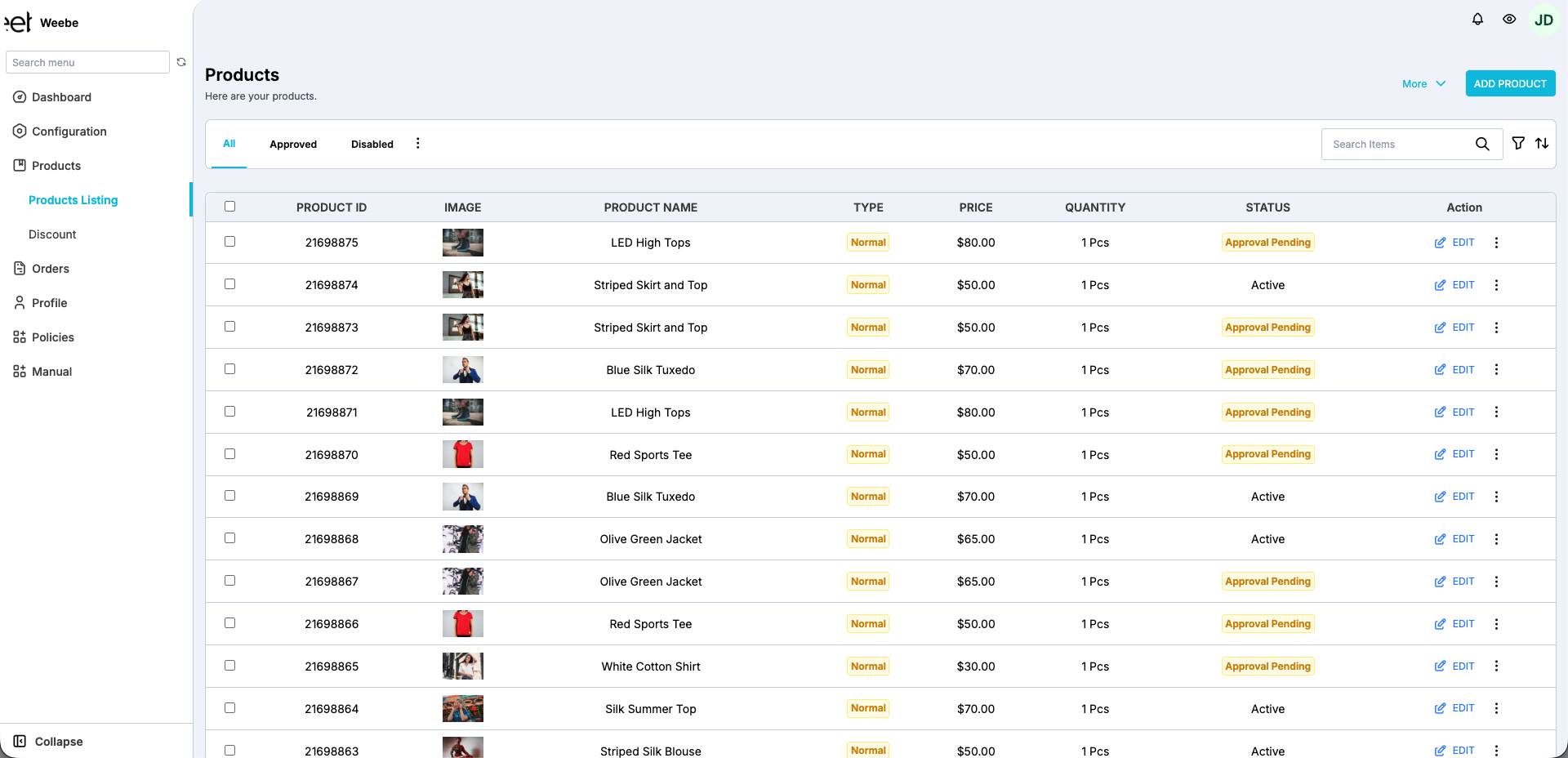
Product Form Fields
| Field | Required | Notes |
|---|---|---|
| Product Type | Yes | Select Normal (physical) or Digital |
| Product Title | Yes | The name shown to customers |
| Description | Yes | Detailed description — features, materials, dimensions |
| Product Images | Yes | Upload up to 10 images; first image is the main image |
| Price | Yes | Selling price — must be after-tax (TTC). Do not enter pre-tax (HT) prices. |
| Compare At Price | No | Original price — shown as crossed out if higher than Price. Must also be TTC. |
| SKU | No | Your internal stock reference |
| Inventory | Yes | Available quantity; choose whether to track stock |
| Variants | No | Add options like Size, Color, Material (up to 3 options, 100 variants max) |
| Tags | No | Keywords to help customers find the product |
Image Guidelines
- Minimum size: 800 × 800 px
- Formats: JPG, PNG, WebP
- Max file size: 10 MB per image
- White or transparent background recommended
- Weebe processes images automatically (background removal, resizing)
Digital Products
When Product Type = Digital, additional fields appear:
- File Upload — the downloadable file
- Number of Downloads — how many times the file can be downloaded per purchase
- Expiry Days — how long the download link remains valid (optional)
Prohibited & Restricted Products
Do not list counterfeit, replica, unsafe, recalled, or illegal products. Certain categories (medical products, supplements, baby safety items, electronics requiring certifications) are restricted and require prior approval with supporting documentation. See the Product & Listing Rules and Restricted Products Addendum in your dashboard under Policies for full details.
All prices must be after-tax (TTC — Toutes Taxes Comprises). Pre-tax (HT) prices are not accepted. Listings submitted with HT pricing will be rejected during review.
Saving and Approval
Click Save when done. Your product is submitted for approval. Once the Weebe team approves it, it goes live on the marketplace.
You can track approval status from Products → Products Listing. See Managing Products for the full approval workflow.
Editing a Product
Go to Products → Products Listing, find the product, and click Edit. See Editing Products for full details on editable fields, bulk edit, and synced-store products.