Editing Products
You can edit any product in your catalogue from Products → Products Listing. Changes to already-approved products take effect immediately, though significant changes (such as a new product title or images) may trigger a re-review by the Weebe team.
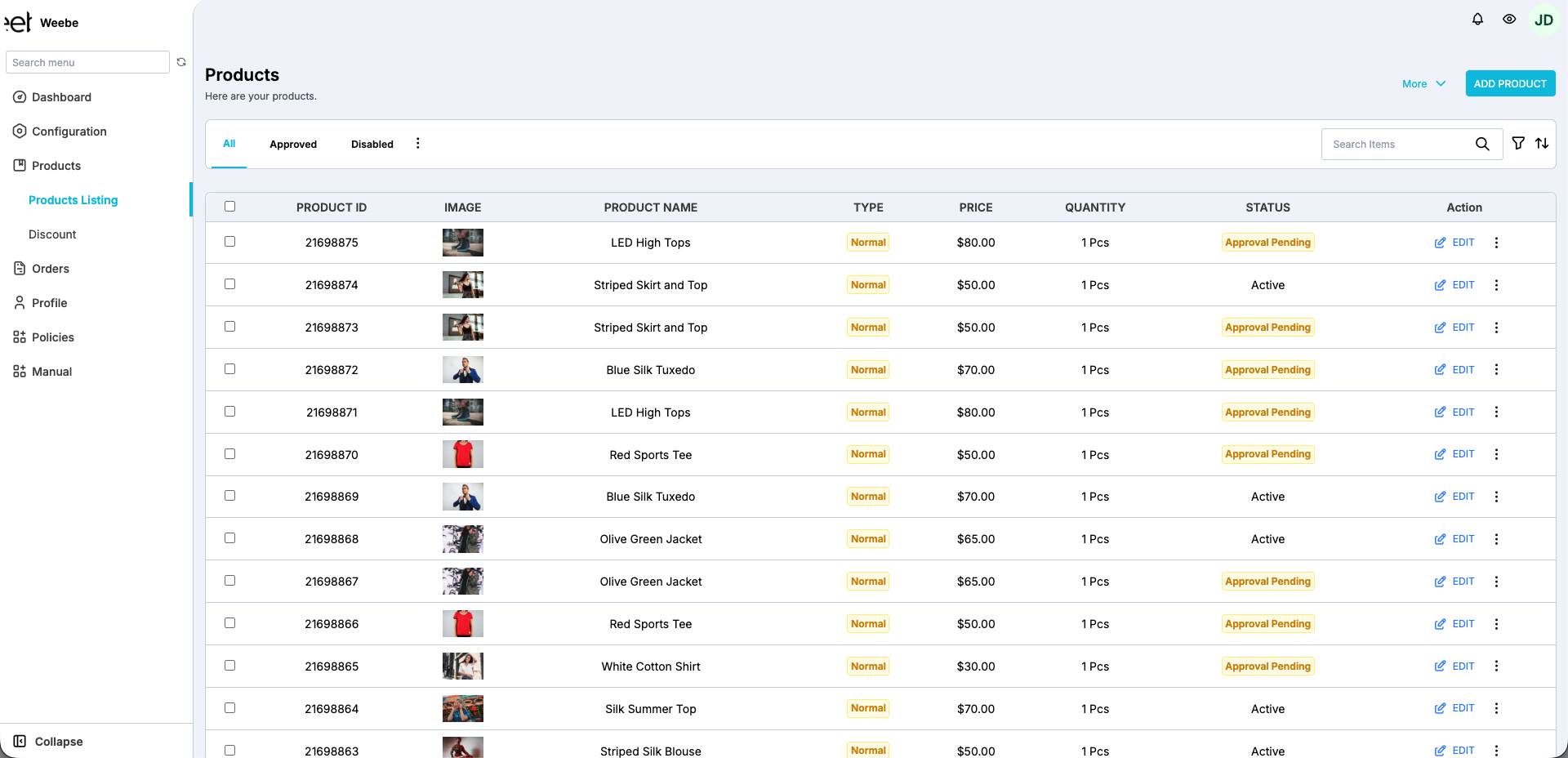
Editing a Single Product
- Go to Products → Products Listing
- Find the product you want to update
- Click Edit on its row
- Make your changes in the product form
- Click Save
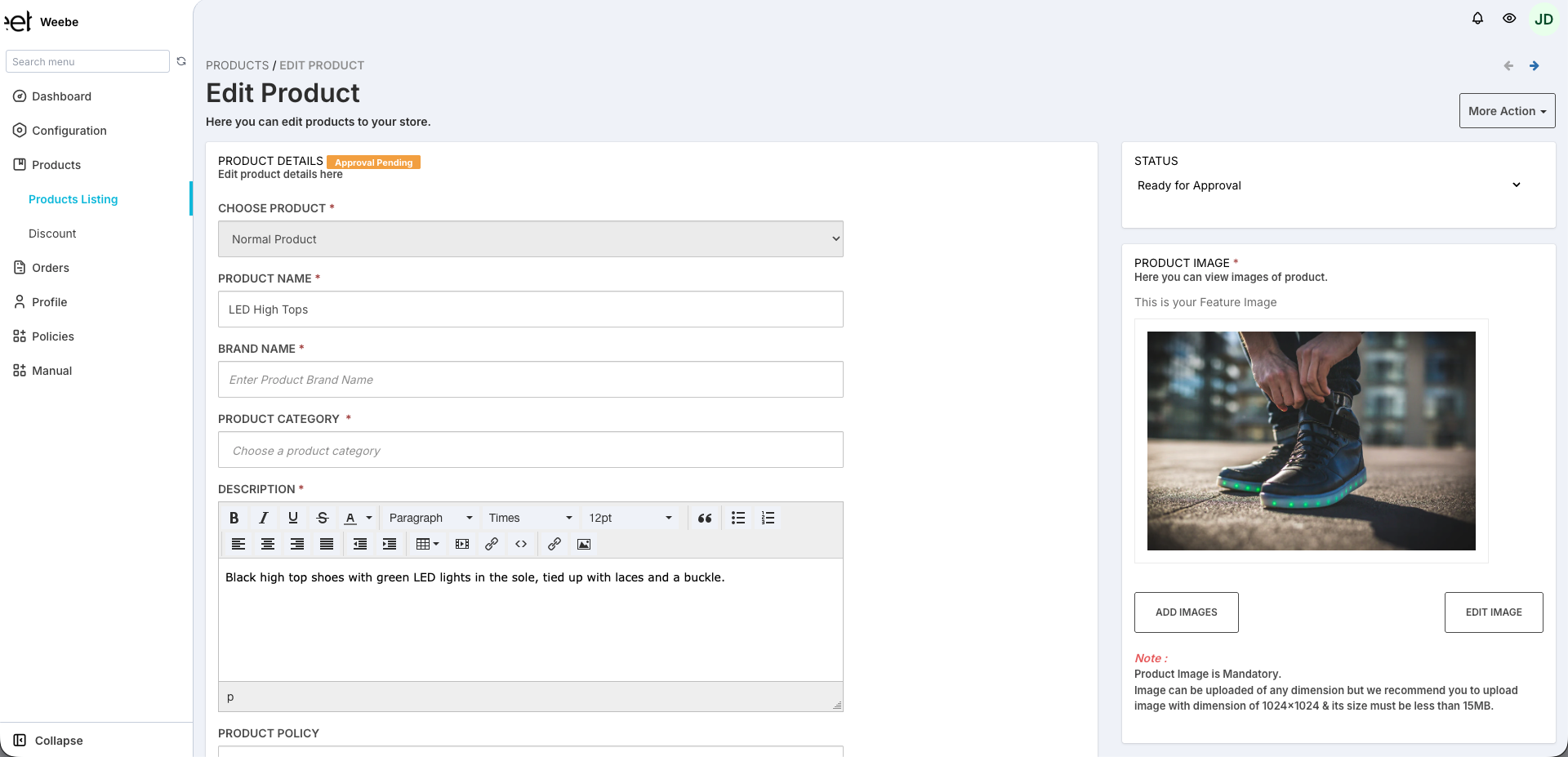
Editable Fields
| Field | Notes |
|---|---|
| Product Type | Normal Product, Configurable, etc. |
| Product Title | Changing the title may trigger re-review |
| Brand Name | Your product's brand |
| Product Category | Select from the Weebe category tree |
| Description | Updates immediately for approved products |
| Price | The selling price shown to customers — must be after-tax (TTC) |
| Compare At Price | The original (crossed-out) price — must also be TTC. Remove to hide the discount label. |
| SKU | Your internal stock reference |
| Inventory | Current stock quantity — see Inventory Management |
| Weight | Used for shipping calculations |
| Images | Add, remove, or reorder images — first image is the main image |
| Variants | Edit existing options (size, colour, etc.) or add new ones |
| Tags | Keywords that help customers discover the product |
Edits to the product title, main image, or category may put the product back into Approval Pending status. The product stays visible to buyers until a decision is made.
Bulk Edit
Use bulk edit when you need to update multiple products at once — useful for seasonal price changes, stock corrections, or tag updates across your catalogue.
- Go to Products → Products Listing
- Select products using the checkboxes on each row
- Click More Action → Bulk Edit
- Edit inline across the columns — changes are saved per cell as you go
Bulk-editable fields
- Product name
- Tags and product type
- Quantity (stock)
- SKU and barcode
- Weight
- Price and compare-at price (both must be TTC — after-tax)
You can bulk edit up to 50 products at a time. For larger updates, use CSV Bulk Upload to overwrite data via file import.
Deleting a Product
- Open the product's edit form
- Use the Delete option at the bottom of the form
- Confirm the deletion
Deletion is permanent. If the product is synced from Shopify, Magento, or WooCommerce, it will reappear on the next sync unless you exclude it in the source store — see the relevant integration guide for details.
Shopify, Magento & WooCommerce Products
For products synced from an external store, edit them in your source store rather than in Weebe directly. Changes sync automatically within minutes. Editing a synced product directly in Weebe risks being overwritten on the next sync cycle.
| Source | Where to edit |
|---|---|
| Shopify | Shopify admin → Products |
| WooCommerce | WooCommerce admin → Products |