Adding products via Magento
If you sell on Magento, you can connect your Magento store to Weebe and import your products into the marketplace. This helps you avoid re-entering product data manually and keeps your seller workflow more organized.
Products imported from Magento are submitted to Weebe in an Approval Pending state. The Weebe team may review products before they become visible to customers.
Before You Start
Before starting the Magento connection, make sure you have access to:
- Your Magento admin panel
- The Weebe seller panel
- Your Magento product SKUs
- Permission to create Magento integrations and API access tokens
For best results, make sure your Magento products have complete product names, SKUs, prices, descriptions, stock, and images before importing them to Weebe.
Generate the Magento Access Token
To connect Magento with Weebe, you need to generate an access token from your Magento store.
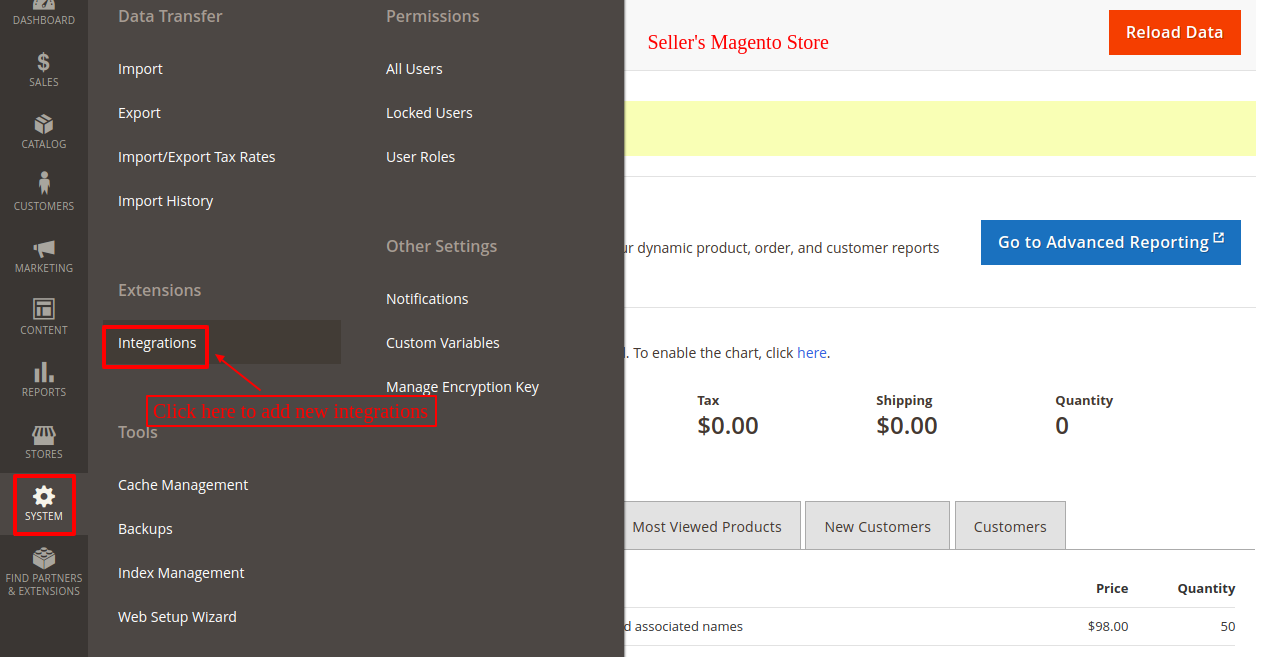
Step 1: Open Magento Integrations
Log in to your Magento admin panel, then go to:
System → Integration
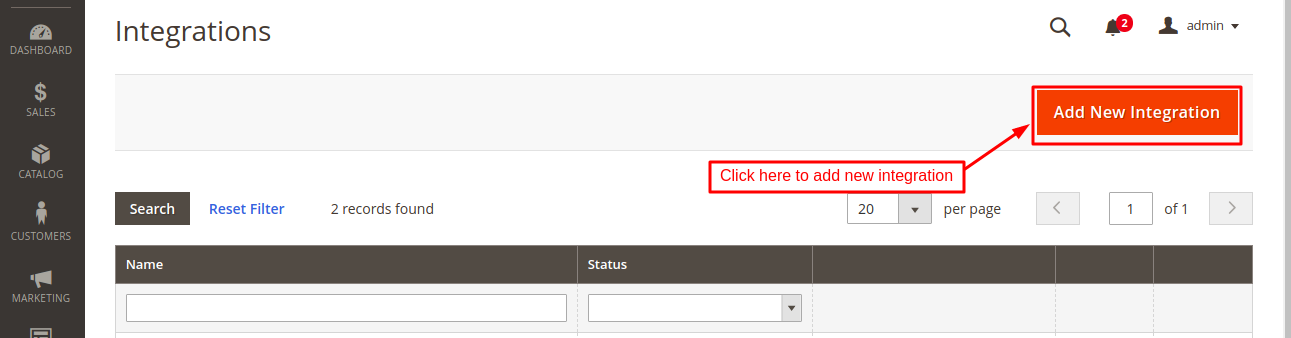
Step 2: Add a New Integration
Click Add New Integration.
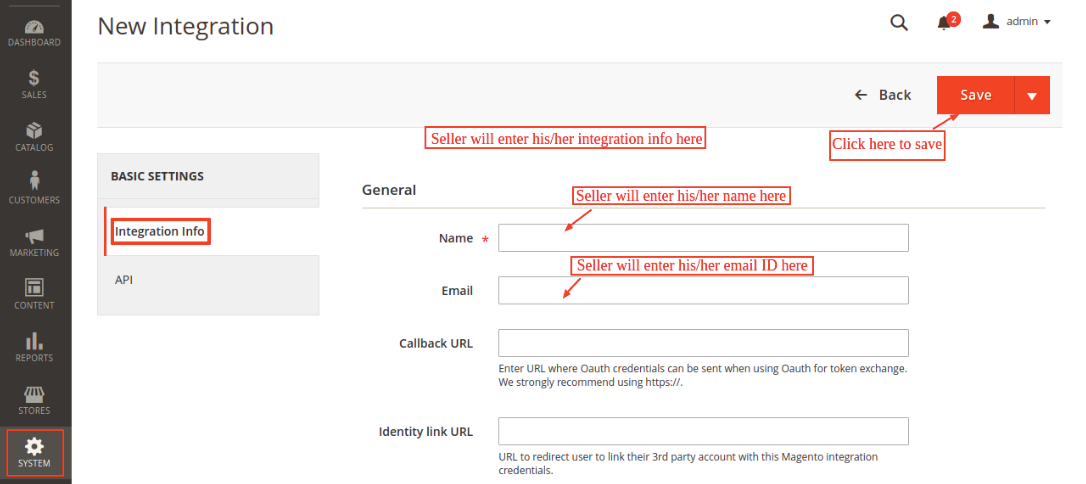
Step 3: Enter the Integration Details
Enter the required integration details, such as the integration name and email address, then click Save.
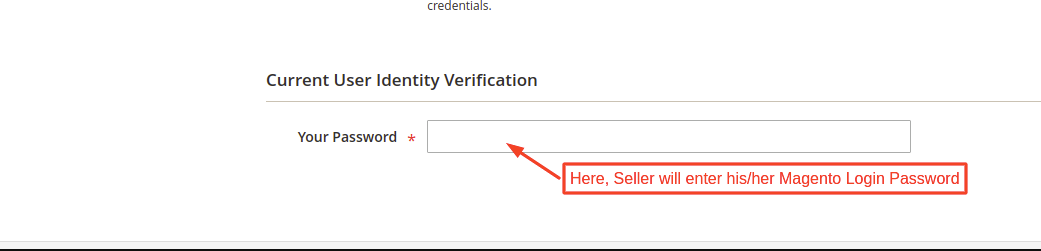
Magento may ask you to confirm your current admin password before saving or activating the integration.
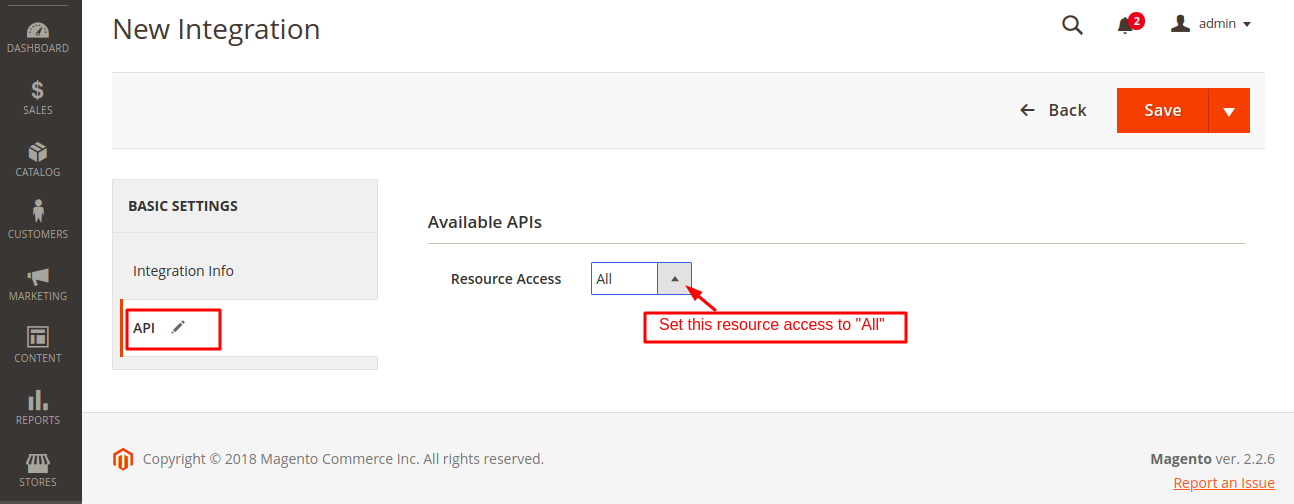
Step 4: Set API Resource Access
In the integration settings, open the API section and set Resource Access to All.
Step 5: Activate the Integration
The integration may first appear as Inactive. Activate it and allow the requested access.
After activation, Magento will show the integration details, including the Access Token.
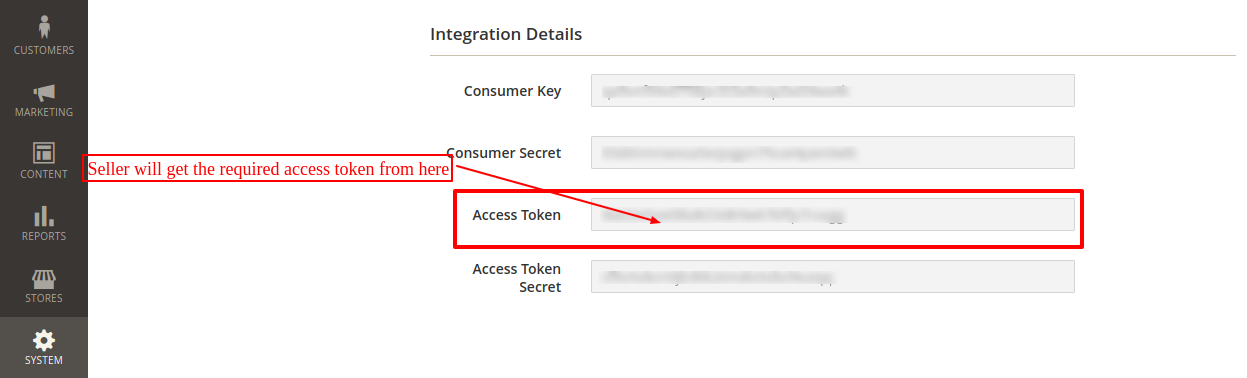
Copy the access token and keep it ready for the next step.
Configure Magento in the Weebe Seller Panel
After generating the Magento access token, log in to your Weebe seller panel and go to the Magento configuration section.
Enter the required Magento details and paste the access token generated from your Magento admin panel.
If the Auto Sync option is enabled in the Magento Configuration section, newly created Magento products can be synced automatically into the Multivendor app and submitted as Approval Pending.
Import Products from Magento to Weebe
If you want to import selected products instead of relying only on auto sync, use the Import Product option from the Magento connector.
The Magento connector supports importing up to 250 products at a time using product SKUs.
There are two import methods:
Method 1: Import by Single SKU or Comma-Separated SKUs
Use this method when you want to import one product or a specific group of products.
Enter the Magento product SKU or multiple SKUs separated by commas, then click Import Product.
Example:
SKU001, SKU002, SKU003
Method 2: Import by CSV File
Use this method when you want to import products in bulk.
Prepare a CSV file containing the Magento product SKUs, upload it in the Magento connector, and import the products in one go.
Product Listing and Approval
After Magento products are imported into the Weebe seller panel, they will appear in the product listing section.
Imported products are usually created in an Approval Pending state until reviewed and approved.
You can check your imported products from:
Products → Products Listing
For approval status details, see Managing Products.
Magento Order Sync
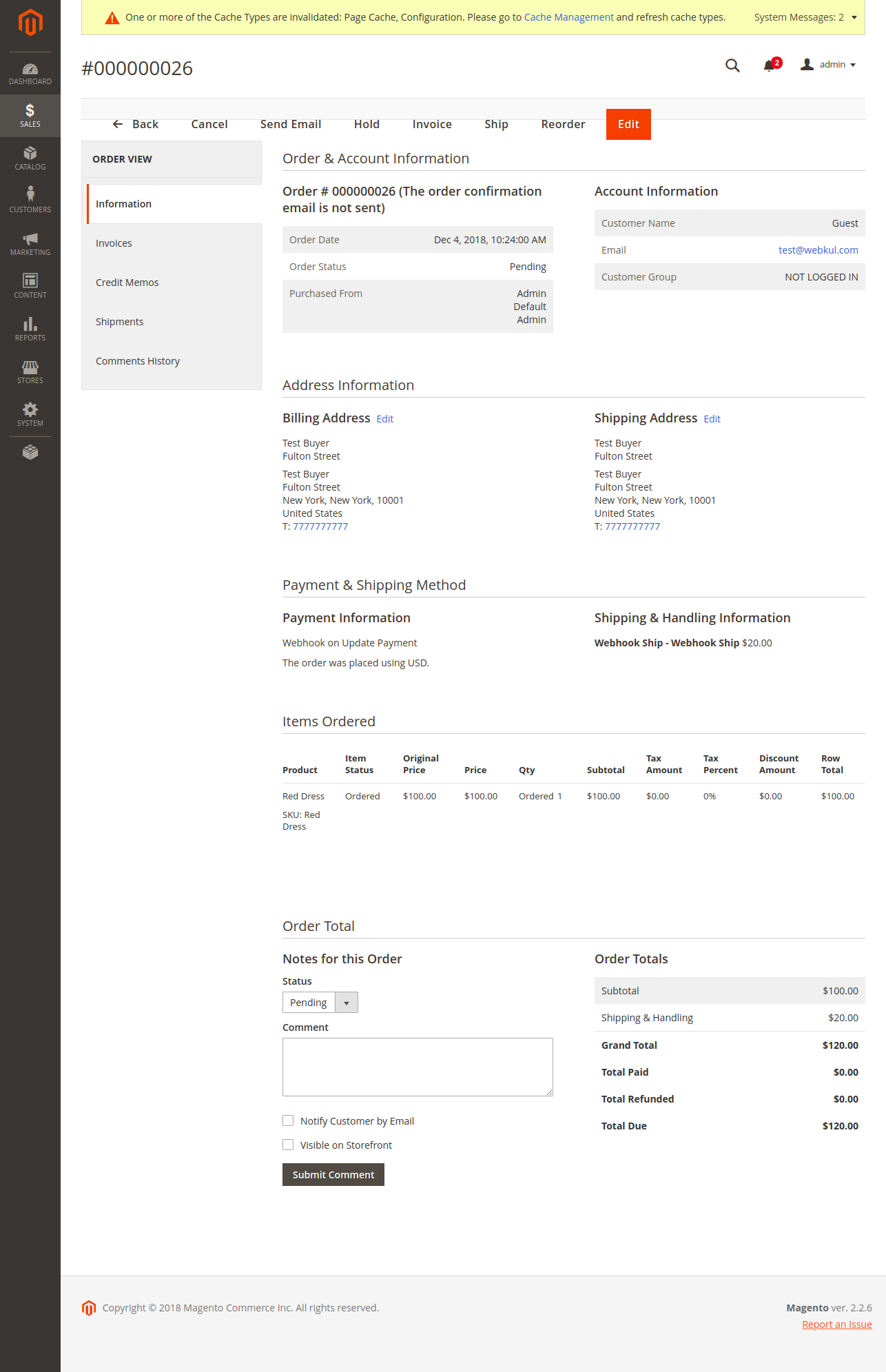
Orders can also be synced back to Magento so the seller can view order updates from the Magento store.
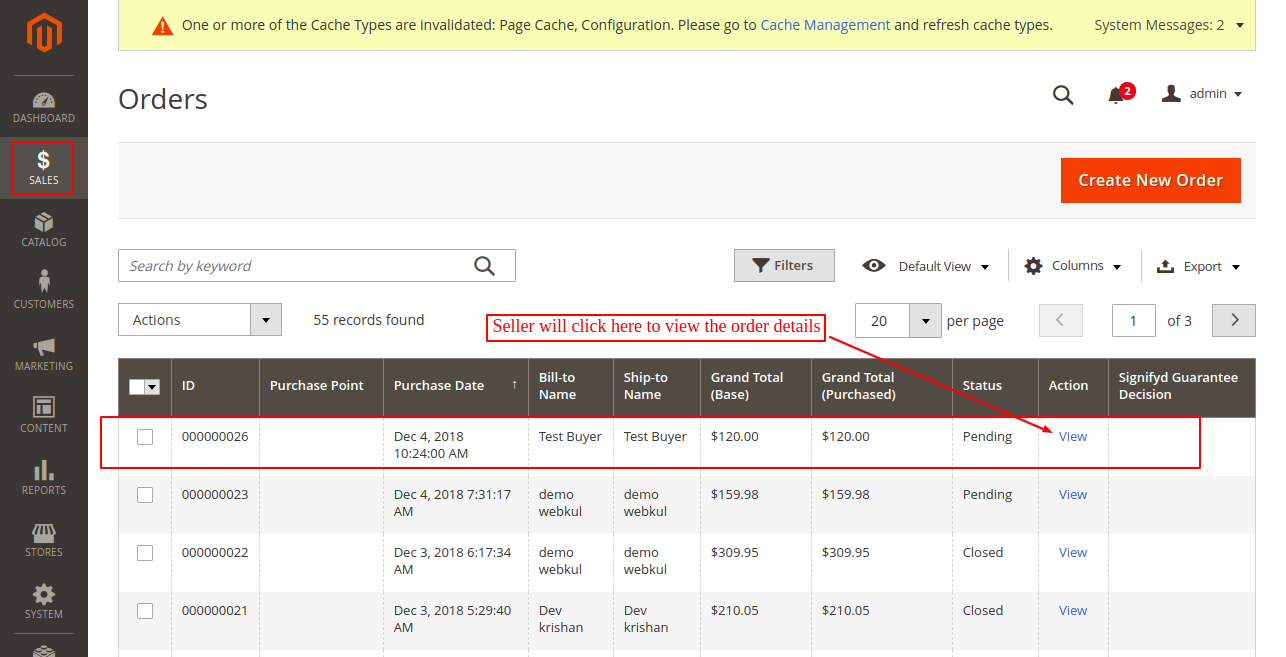
The seller can open the order in Magento to view the full order details and updates.
Important Notes
- Magento product SKUs are required for selected product imports.
- A maximum of 250 products can be imported at a time through the SKU import option.
- Make sure the Magento integration is active before importing products.
- Set API Resource Access to All when generating the Magento integration token.
- Products imported from Magento still go through Weebe approval before going live.
- If auto sync is enabled, newly created Magento products can be submitted automatically to the seller panel.
Troubleshooting
Products are not importing from Magento
- Confirm the Magento access token is correct.
- Make sure the Magento integration is active.
- Check that API Resource Access is set to All.
- Confirm the product SKU exists in Magento.
- If using CSV, make sure the SKU values are correct and formatted properly.
Auto sync is not creating products in Weebe
- Confirm that Auto Sync is enabled in the Magento Configuration section.
- Create or update a test product in Magento and allow time for sync.
- Check whether the product appears in the Weebe seller panel as Approval Pending.
Orders are not appearing in Magento
- Confirm the Magento connector is still connected.
- Check that the access token was not revoked or changed.
- Contact Weebe support if order updates are not syncing after the connector is configured.