Adding products via BigCommerce
If you sell on BigCommerce, you can connect your BigCommerce store to Weebe and import products into the marketplace without re-entering everything manually.
This guide explains how to prepare your BigCommerce API account, connect it in the seller panel, import products, register webhooks, and sync product barcodes.
Before You Start
Before connecting your BigCommerce store, make sure you have access to:
- Your BigCommerce admin panel
- Your Weebe seller panel
- The BigCommerce Store Hash
- The BigCommerce Access Token
- Store weight unit, currency, and dimension unit
- Permission to create API accounts inside BigCommerce
Imported products may still require review and approval by the Weebe team before they become visible to customers.
Seller Panel Configuration
After the BigCommerce connector is enabled for your seller account, a new menu appears in the seller panel.
Go to:
Configuration → BigCommerce Configuration
In this section, enter your BigCommerce connection details:
- Store hash
- Weight unit
- Store currency
- Dimension unit
- Access token
- Auto-sync preference for newly added products
The details are created from your BigCommerce store by creating an API account.
How to Create a BigCommerce API Account
To create an API account:
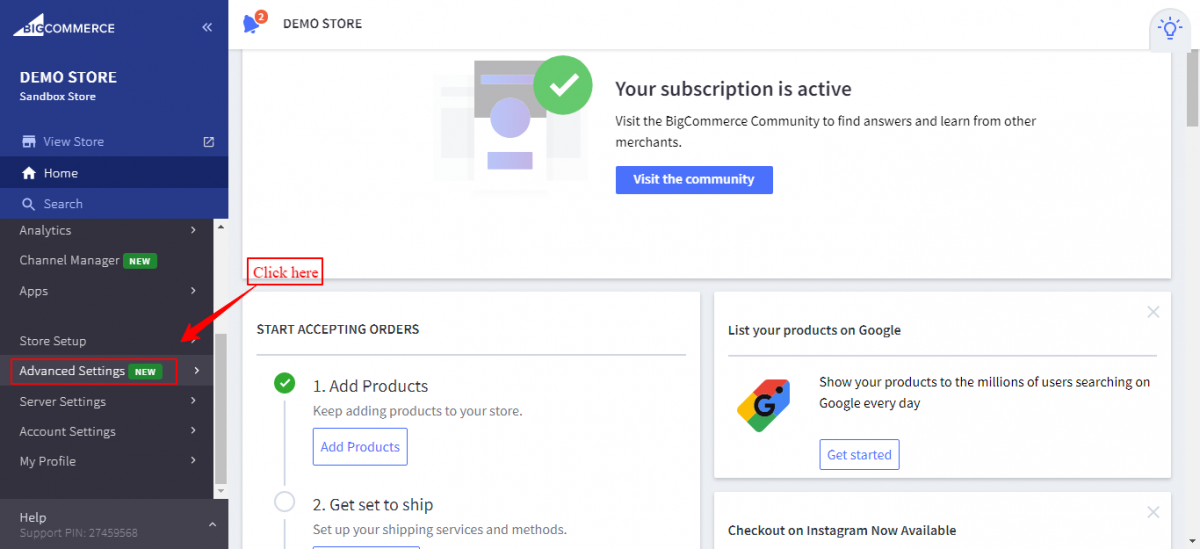
- Log in to your BigCommerce admin panel.
- Go to Advanced Settings.
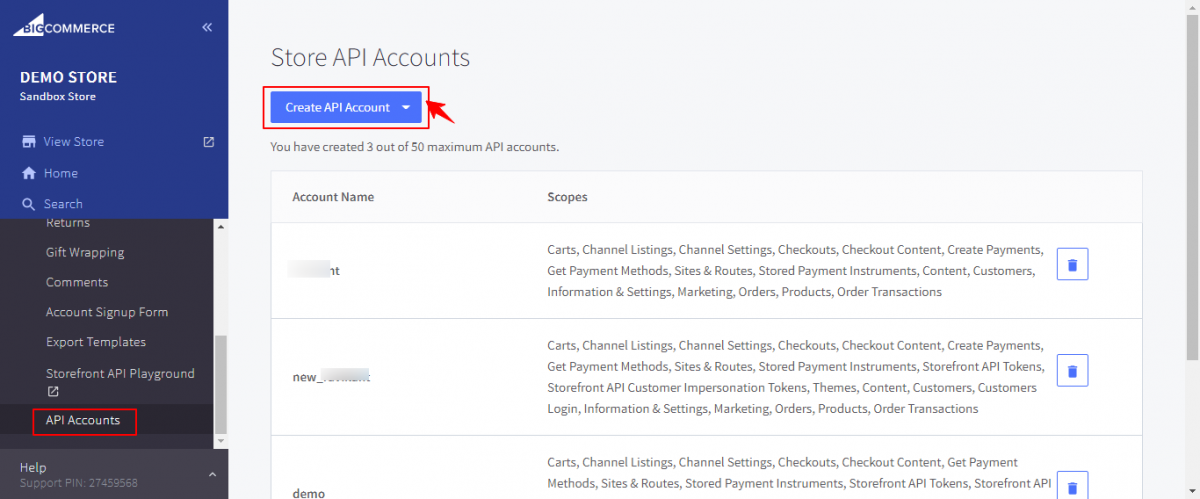
- Scroll down and open API Accounts.
- Click Create API Account.
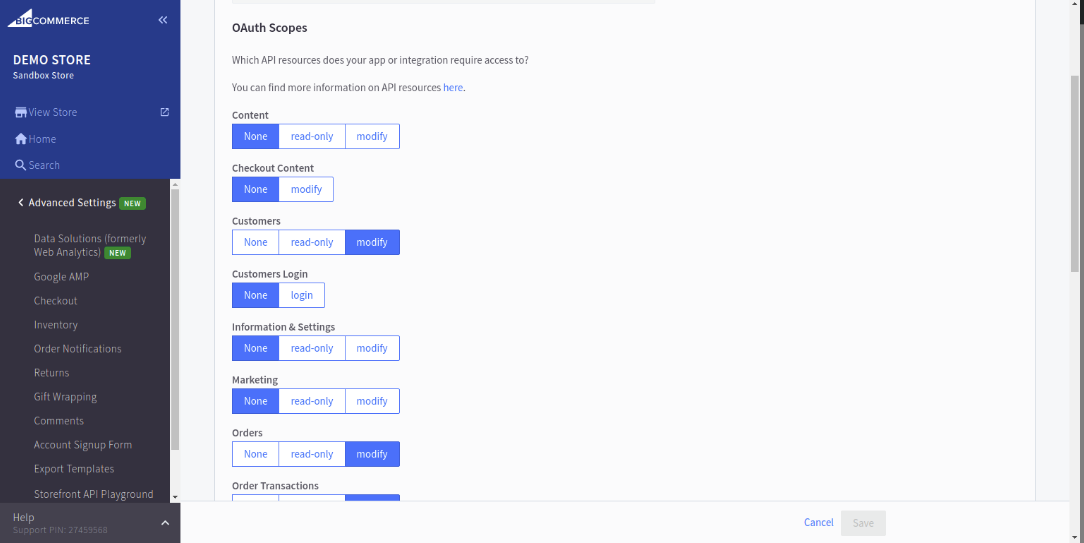
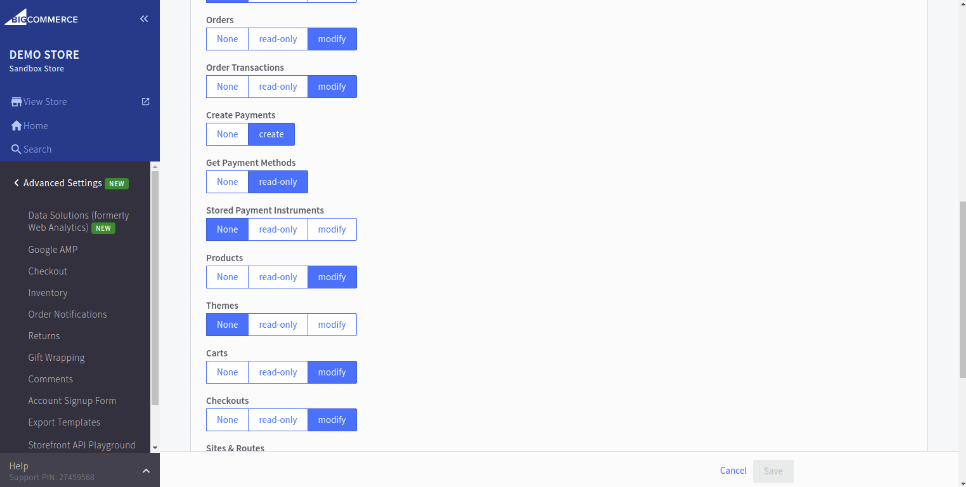
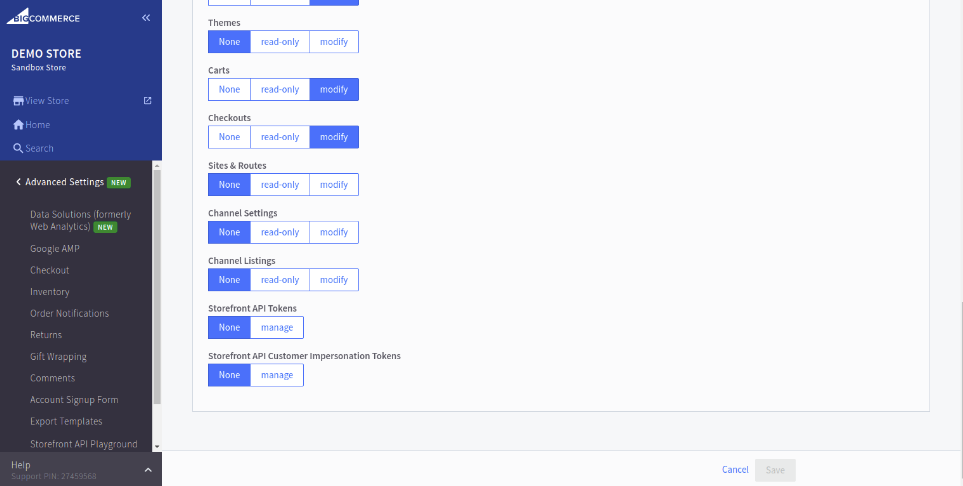
- Configure the required API permissions.
- Save the API account.
- Copy the access token and required store details.
API Permissions
When creating the BigCommerce API account, select the required scopes/permissions so the connector can read product data and keep product information updated.
The exact permissions may vary based on the connector setup, but make sure product-related permissions are enabled as required by the Weebe onboarding team.
How to Get the Access Token
After completing the API account setup and clicking Save, BigCommerce displays a credentials pop-up.
From this pop-up, copy the Access Token and keep it securely. You will need to enter it inside the Weebe seller panel under BigCommerce Configuration.
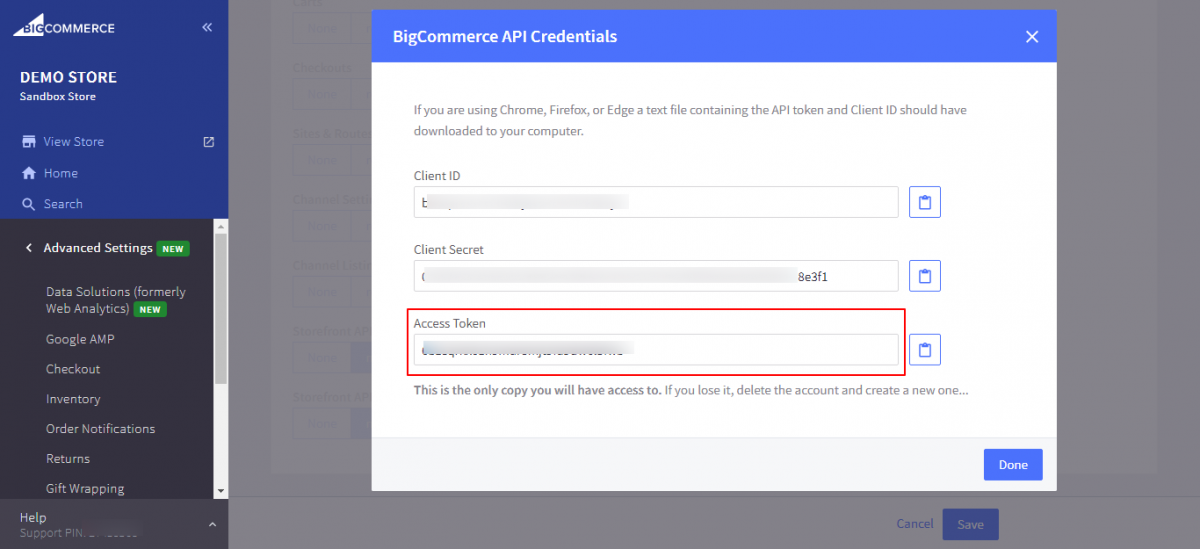
Do not share your BigCommerce access token publicly. Only paste it inside the secure BigCommerce Configuration section of the Weebe seller panel.
Enter BigCommerce Details in the Seller Panel
After creating the BigCommerce API account, return to the Weebe seller panel.
Go to:
Configuration → BigCommerce Configuration
Enter the required details:
- Store hash
- Weight unit
- Store currency
- Dimension unit
- Access token
- Auto-sync setting for newly added products
After saving, your BigCommerce store will be connected to Weebe.
Import Products from BigCommerce to Weebe
After configuration is completed, you can import products from BigCommerce into Weebe.
In the seller panel, click Import Product.
You can import products using two methods:
Method 1: Import by Product IDs
Use this option when you want to import specific products only.
Enter the BigCommerce product IDs separated by commas.
Example:
123,456,789
Method 2: Import by Date Range
Use this option when you want to import products within a selected range.
Select the range, then start the import.
Auto-Approve Imported Products
The Weebe admin team may enable auto-approval for imported products from the admin panel.
If auto-approval is enabled, imported products may be approved automatically based on marketplace rules. If not, products may remain pending until reviewed by the Weebe team.
For approval statuses, see Managing Products.
Register BigCommerce Webhooks
Webhooks help keep product and order-related changes synchronized between BigCommerce and Weebe.
From the seller panel, go to:
BigCommerce Configuration → BigCommerce Webhooks
From there, you can register or unregister BigCommerce webhooks.
Webhooks may be used to update product data automatically when changes happen inside your BigCommerce store.
Sync Barcode
Weebe can allow sellers to sync product barcode values from BigCommerce into the marketplace.
Supported barcode fields may include:
- UPC
- MPN
- GTIN
- Other BigCommerce barcode-related values, depending on configuration
After the Weebe admin enables barcode sync, go to:
Seller Panel → BigCommerce Configuration → Select Barcode → Save
Choose the barcode field you want to sync with Weebe.
Sync Rules and Important Notes
- Make sure your BigCommerce API account has the correct permissions.
- Keep your access token secure.
- Products should have complete names, descriptions, images, prices, SKUs, and stock quantities before importing.
- Product imports may take a few minutes depending on catalogue size.
- Products may require Weebe approval before becoming visible to customers.
- If a product does not import correctly, check the product ID, API permissions, and BigCommerce connection details.
Troubleshooting
Products are not importing
- Confirm the store hash is correct.
- Confirm the access token is valid.
- Check that the API account has the required product permissions.
- Make sure the product IDs are correct if importing by IDs.
Products import but do not appear live
- Check whether the products are pending approval.
- Confirm the products have complete required information.
- Contact the Weebe team if the products remain pending unexpectedly.
Barcode is not syncing
- Confirm barcode sync is enabled for your account.
- Check that the selected barcode field exists in BigCommerce.
- Save the barcode selection again in BigCommerce Configuration.
New products are not syncing automatically
- Confirm auto-sync is enabled in BigCommerce Configuration.
- Check whether webhooks are registered.
- Reconnect or refresh the BigCommerce configuration if needed.