Inventory Management
Weebe uses your product's stock quantity to decide whether it is shown to buyers. A product with quantity = 0 is automatically hidden from the marketplace. This page explains how to manage stock depending on how your products are listed.
Stock Tracking Modes
When you add or edit a product, you can choose whether Weebe tracks its inventory:
| Mode | Behaviour |
|---|---|
| Track inventory | Quantity decrements with each sale; product hides automatically at 0 |
| Don't track inventory | Product stays visible regardless of how many units have sold |
For physical goods, tracking inventory is strongly recommended to avoid overselling.
Manually Uploaded Products
Update stock directly from the product's edit form:
- Go to Products → Products Listing
- Click Edit on the product
- Update the Inventory field with the current quantity
- Click Save
Changes take effect immediately — no re-review is required for quantity-only updates.
Out-of-Stock Products
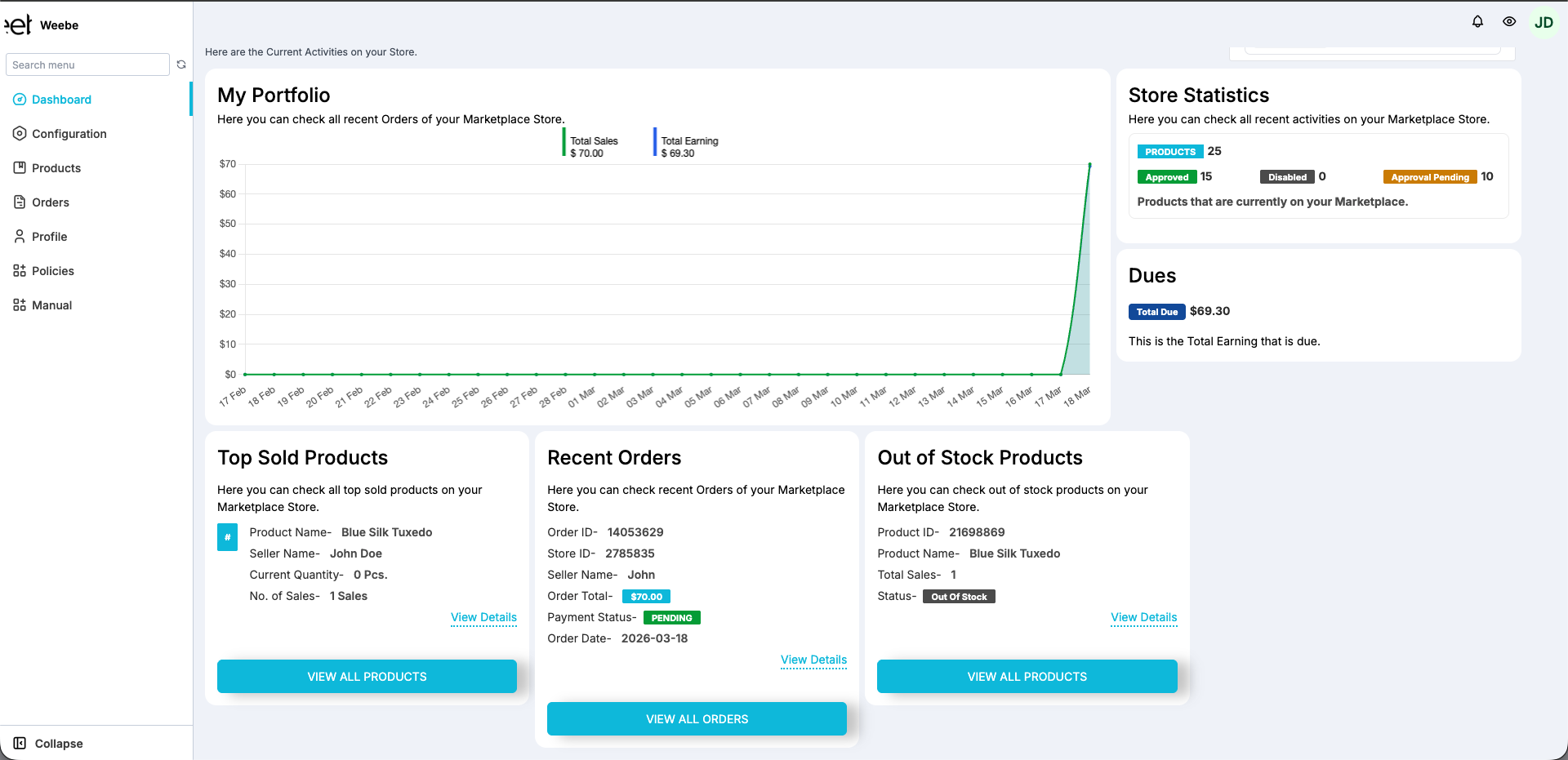
Your Dashboard has a dedicated Out of Stock Products panel (bottom-right) that lists every product currently at quantity = 0. Use this as your daily restocking checklist.
- Click View All Products in the panel to go directly to the filtered listing
- Update the quantity in each product's edit form to make it visible again
- Products remain in your catalogue when out of stock — they are hidden from buyers, not deleted
Shopify-Synced Products
Manage inventory in Shopify — quantities sync to Weebe automatically.
- When stock reaches
0in Shopify, the product is hidden on Weebe - When you restock in Shopify, the product becomes visible on Weebe again on the next sync (usually within a few minutes)
- Do not edit quantities directly in Weebe for Shopify-synced products — they will be overwritten on the next sync
If you stock products across multiple Shopify locations, the quantity shown on Weebe reflects your total available inventory across all active locations. Locations are configured in your Shopify admin → Settings → Locations.
WooCommerce-Synced Products
Manage inventory in WooCommerce — stock syncs to Weebe in real time.
- Go to your WooCommerce product and update the Stock quantity field
- For variable products, set quantities per variation under the Variations tab
- Setting quantity to
0or marking a product Out of stock in WooCommerce hides it on Weebe
Low Stock Monitoring
Keep an eye on your stock levels to avoid unexpected outages:
- Use the Out of Stock Products panel on your Dashboard as a daily restocking list
- For synced stores, set up low stock notifications in Shopify, Magento, or WooCommerce to alert you before products run out
- Use the Search By → Status filter on the Products Listing page to quickly find products with low or zero inventory