Adding products via WooCommerce
If you sell on WooCommerce, you can connect your store to Weebe and sync your catalogue automatically. Products, inventory, and pricing can stay up to date without manual re-entry.
This guide explains how to configure the WooCommerce connector, generate API keys, map categories and tags, add webhooks, and import products.
Before You Start
Before connecting WooCommerce, make sure your store and products are ready for import.
Your WooCommerce products should be:
- Published on your WooCommerce store
- Simple or variable products
- Purchasable
- Not virtual or downloadable
- Available with product name, description, price, stock, SKU, weight, and product images
- Priced as TTC / after-tax before syncing to Weebe
All synced products still go through the Weebe approval process before going live. See Managing Products for approval statuses.
1. Open WooCommerce Configuration
After the WooCommerce connector is enabled for your seller account, a new menu will appear in your seller panel under Configuration → WooCommerce Configuration.
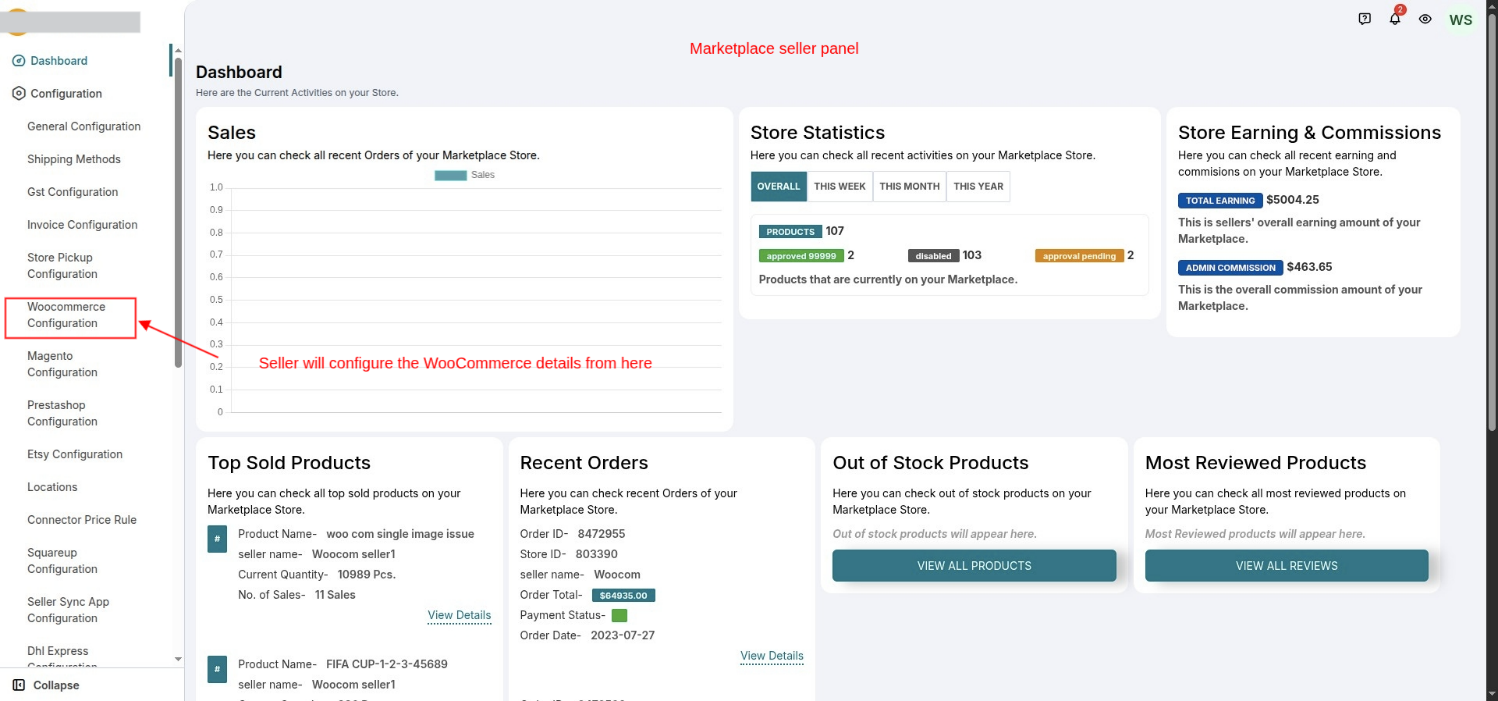
Go to:
- Log in to seller.weebe.co
- Open Configuration from the left sidebar
- Click WooCommerce Configuration
2. Enter Your WooCommerce Store Details
In the WooCommerce Configuration page, enter the details required to connect your WooCommerce store to Weebe.
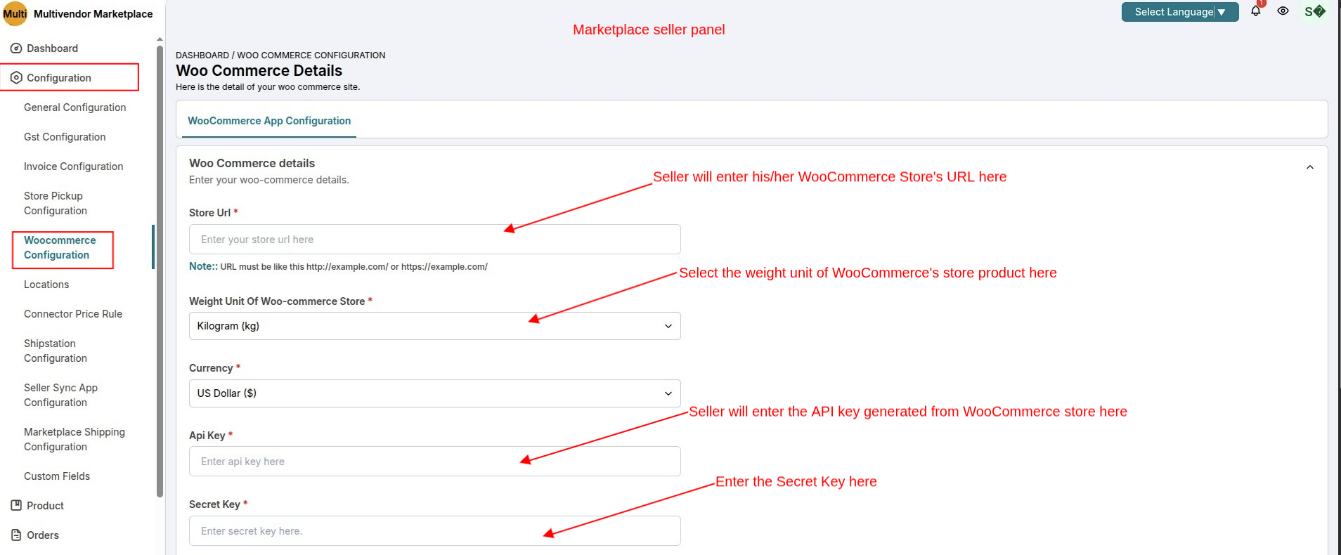
You need to provide:
- Your WooCommerce store URL
- The weight unit used for your WooCommerce products
- WooCommerce API key / Consumer Key
- WooCommerce Secret Key / Consumer Secret
Your WooCommerce store must be publicly accessible. Password-protected, staging, or maintenance-mode stores may not sync correctly.
3. Enter the Language ISO Code
If your WooCommerce store has a language restriction, enter the language ISO code in the provided field.
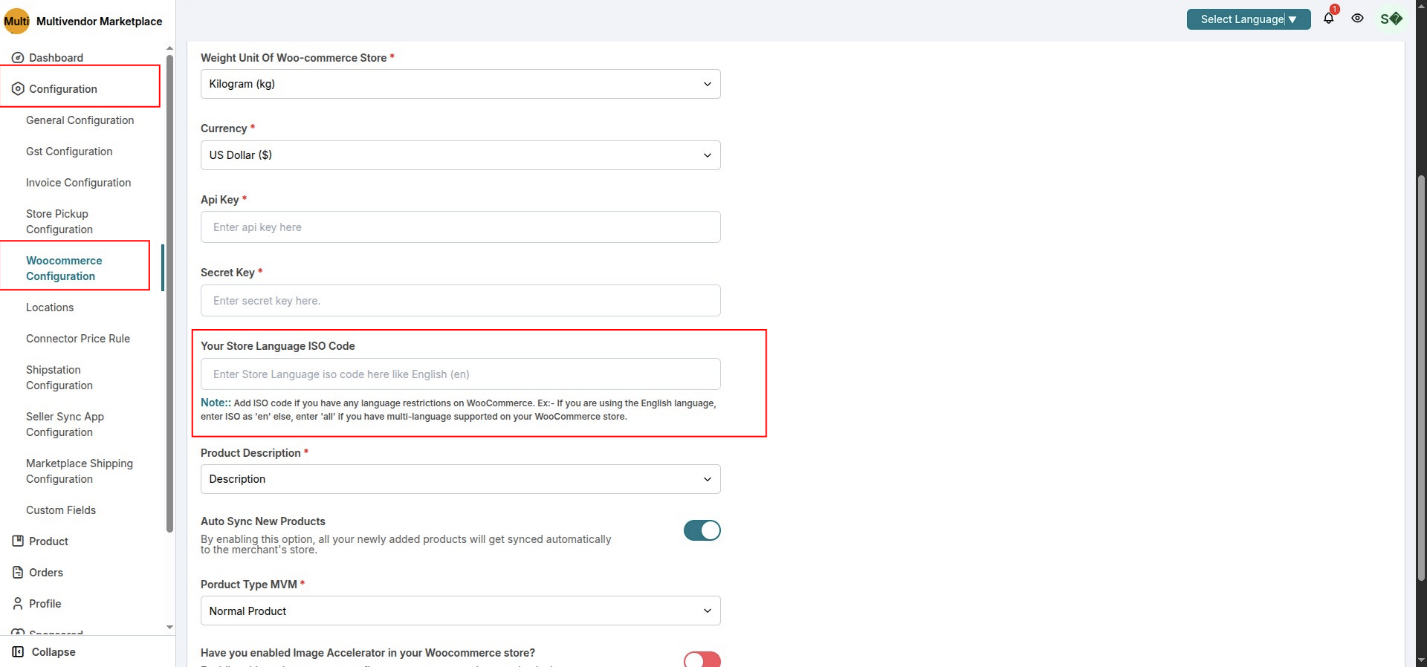
Examples:
| Store language setup | Value to enter |
|---|---|
| English store | en |
| Multi-language store | all |
4. Generate Your WooCommerce API Key and Secret Key
To connect your WooCommerce store, you need to generate a WooCommerce API key and secret key from your WordPress dashboard.
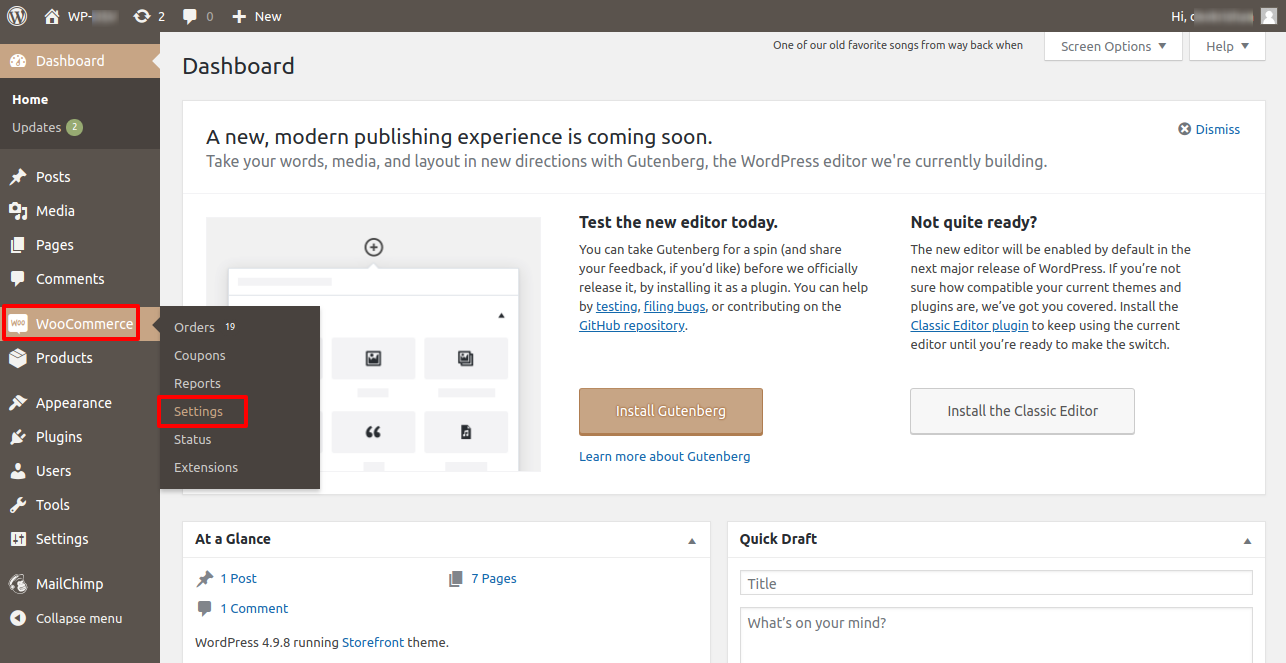
In WordPress, go to:
- Log in to your WordPress admin dashboard
- Go to WooCommerce
- Click Settings
- Open the Advanced tab
- Click REST API
- Click Add Key
- Generate the API key
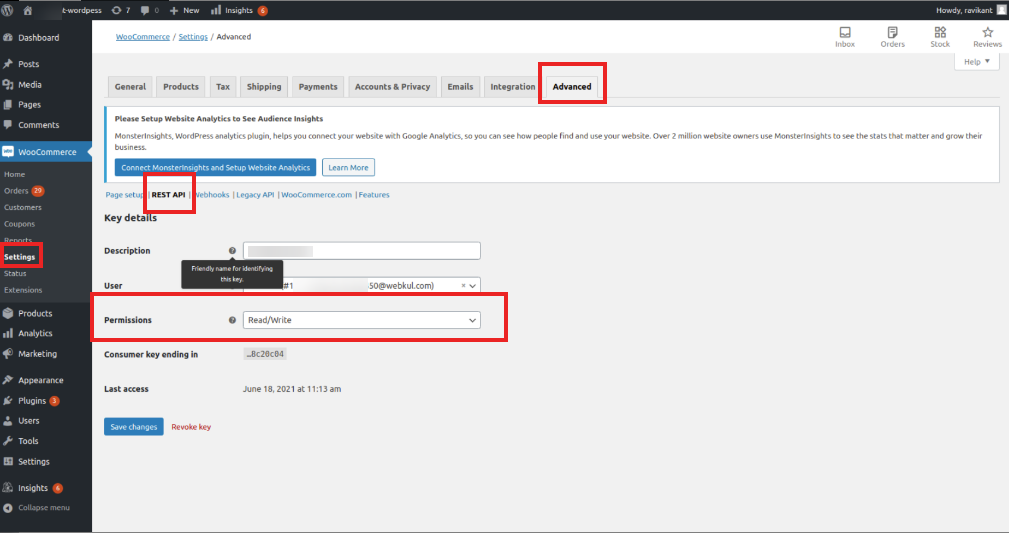
After generating the key, WooCommerce will provide:
- Consumer Key
- Consumer Secret
Copy both values and paste them into the WooCommerce Configuration section in your Weebe seller panel.
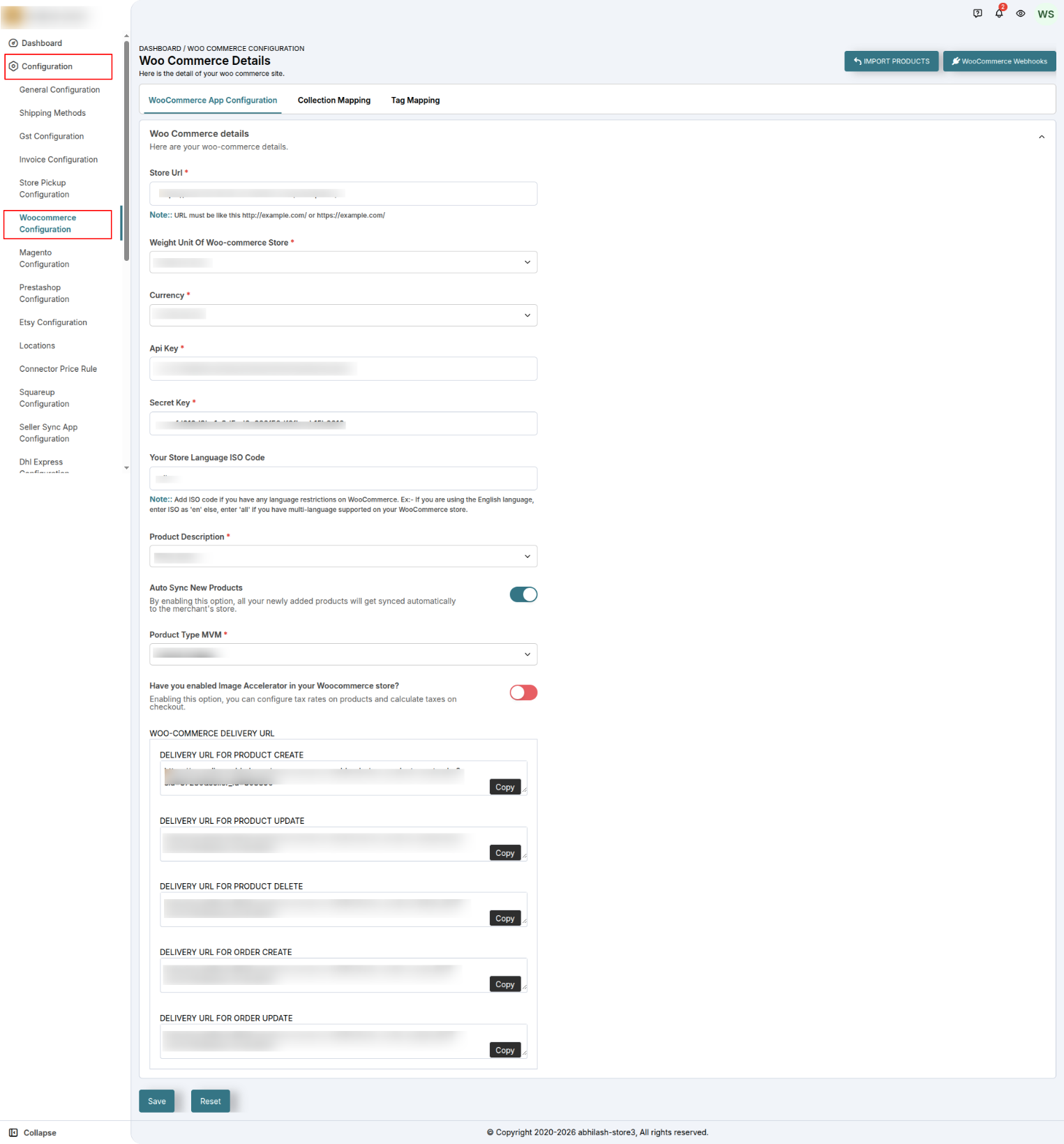
WooCommerce may show the secret key only once. Copy and save it securely before leaving the page.
5. Configure WooCommerce Delivery URLs and Webhooks
After entering your store URL and API keys, the WooCommerce Configuration page will show delivery URLs. These URLs are used when creating WooCommerce webhooks.
Webhooks help Weebe receive updates when important WooCommerce events happen, such as product creation, product updates, product deletion, and order creation.
Required webhook events
The connector may require webhooks for:
- Product Created
- Product Updated
- Product Deleted
- Order Created
To add a webhook in WooCommerce:
- Log in to WordPress
- Go to WooCommerce → Settings
- Open Advanced
- Click Webhooks
- Click Add Webhook
- Enter the webhook name
- Set the status to active
- Select the required topic
- Paste the delivery URL from the Weebe seller panel
- Click Save Webhook
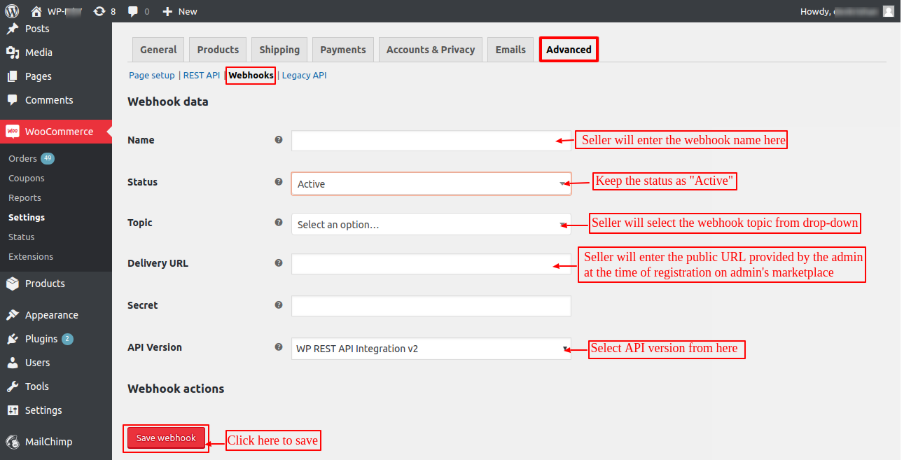
Webhooks help keep product and order updates synchronized. If webhooks are missing or inactive, product inventory and product updates may not sync correctly.
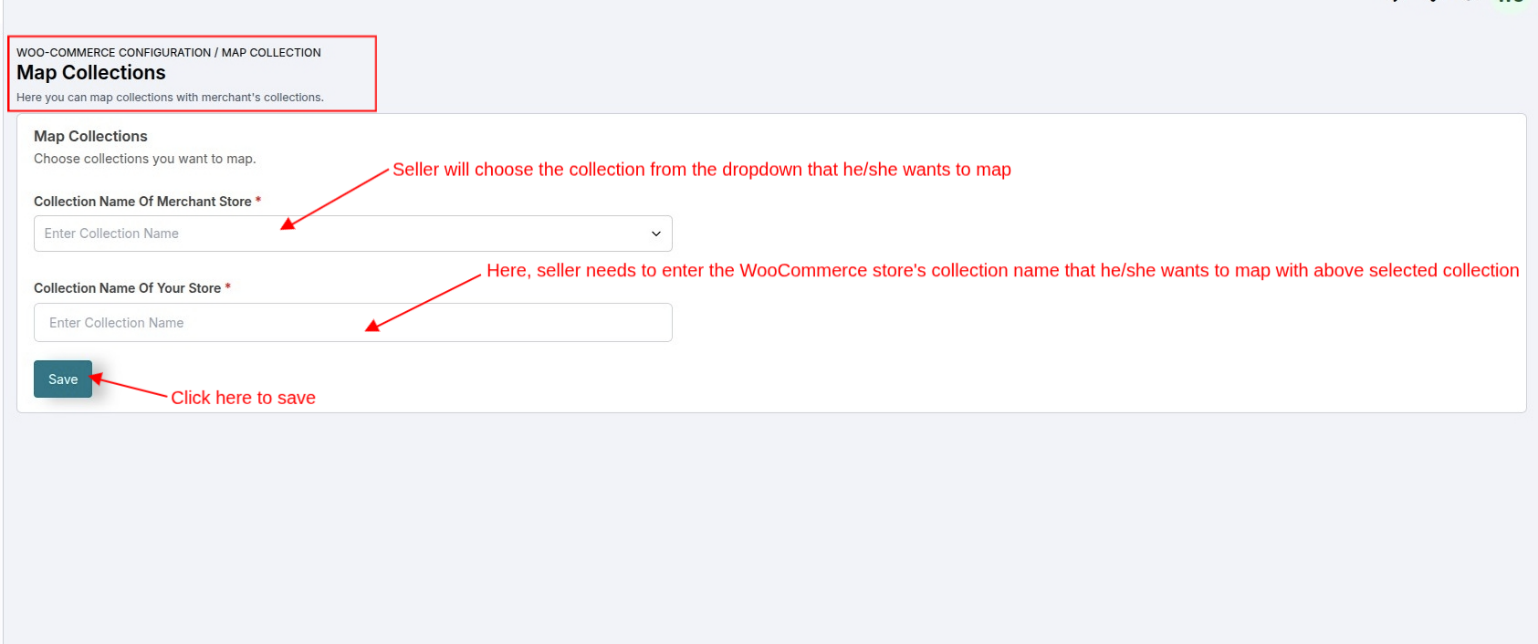
6. Category Mapping
Category mapping allows you to map your WooCommerce categories to Weebe marketplace categories.
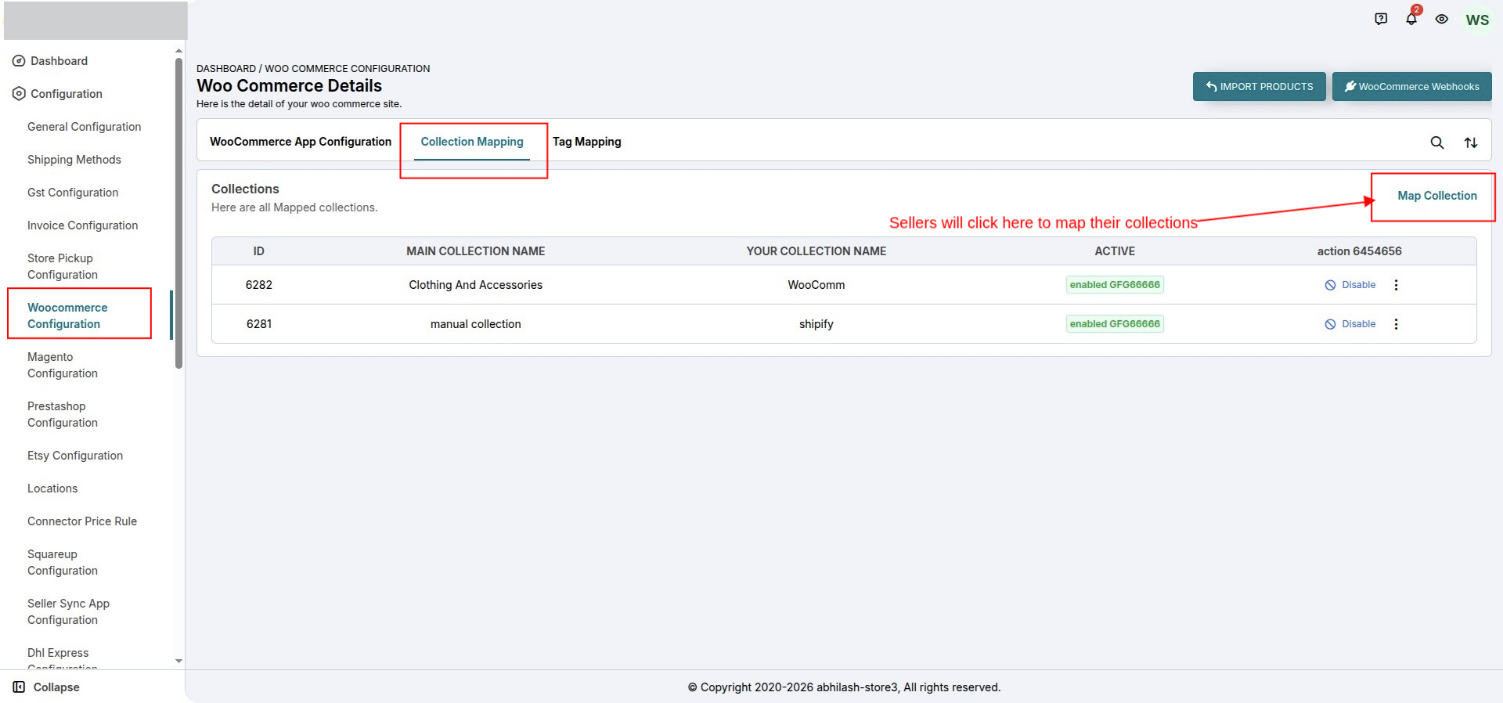
In this section, you can map Weebe's predefined collections/categories with your WooCommerce categories.
Important notes:
- Category mapping should be completed before importing products
- Mapping can be one-to-many
- Category mapping works with manual collections, not automated collections
- Products in unmapped categories may be placed into a default category or may require review
To map a category:
- Click Map Collection
- Select the Weebe category/collection
- Select the matching WooCommerce category or collection
- Save the mapping
7. Tag Mapping
Tag mapping allows you to match your WooCommerce product tags with the product tags used on Weebe.
This helps organize products correctly and improves product visibility, filtering, and catalogue management.
When required, map your WooCommerce tags to the product tags configured in the Weebe seller panel.
8. Import Products from WooCommerce
After the WooCommerce configuration is complete, you can import products from your WooCommerce store into Weebe.
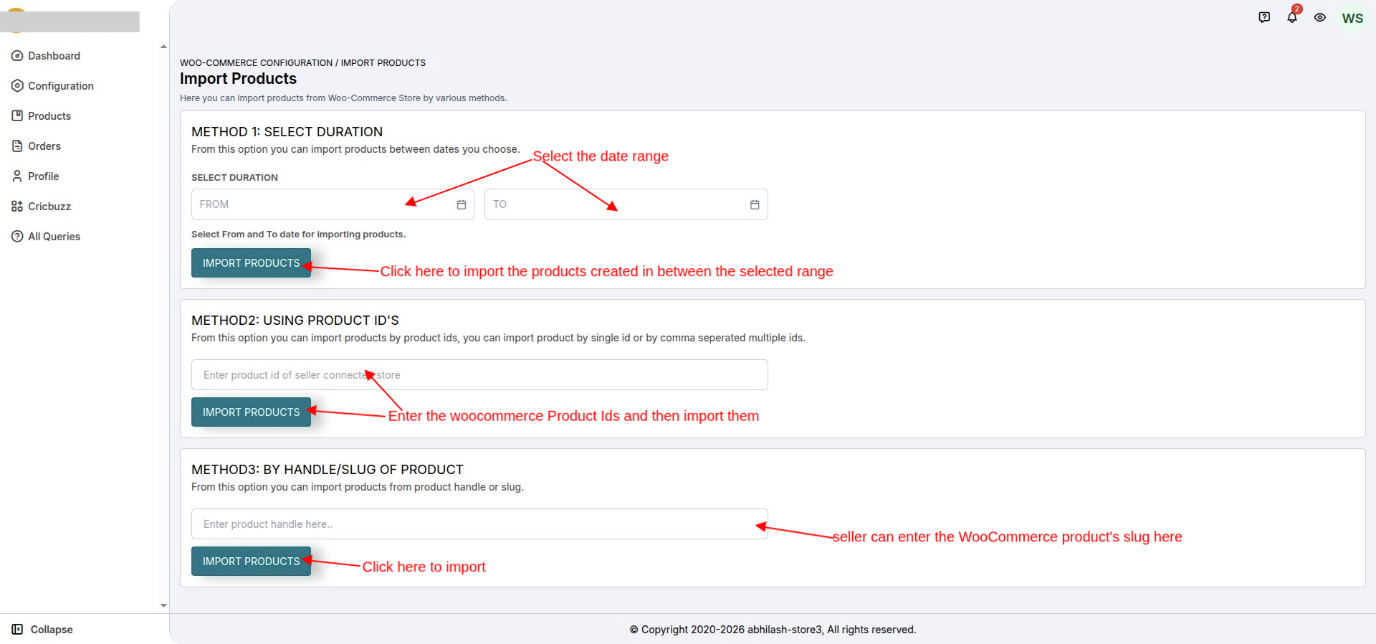
You can import products using three methods.
Method 1: Import by Date Range
Use this option to import products created during a selected date range.
Method 2: Import by Product IDs
Use this option to import specific products by entering their WooCommerce product IDs.
If importing multiple products, separate the IDs with commas.
Method 3: Import by Product Slug
Use this option to import a product using its WooCommerce product slug.
In WooCommerce, the product slug is similar to the product handle used in Shopify.
After importing, products will appear in the product listing section of your seller panel.
9. How the Sync Works
Once connected:
- Published products from your WooCommerce store are imported to Weebe
- Product data can include name, price, SKU, description, quantity, weight, images, and attributes
- Simple and variable product types are supported
- Product variations can be imported when configured correctly
- Inventory updates can sync from WooCommerce to Weebe when webhook configuration is active
Sync Rules
| WooCommerce Status | Weebe Behaviour |
|---|---|
| Published | Imported and submitted for approval |
| Draft | Not synced |
| Private | Not synced |
Out of stock (qty = 0) | Hidden from buyers or treated as unavailable |
| Product deleted in WooCommerce | Removed or updated on Weebe based on connector sync rules |
10. Product Approval After Import
After import, products may remain in a pending state until reviewed by the Weebe team.
If a product is rejected, the reason will be shared so you can correct the issue and resubmit it.
Common reasons for rejection include:
- Missing or unclear product images
- Missing SKU
- Missing price
- Incomplete description
- Incorrect category mapping
- Variant or stock data issues
Tips
- Only published products are synced. Draft and private products are ignored.
- Variable products should have complete variation data, including SKU, price, and stock.
- Ensure your WooCommerce store URL is publicly reachable.
- Use WooCommerce bulk edit to clean product information before syncing.
- Complete category and tag mapping before importing a large catalogue.
- Keep your API credentials active and do not delete the WooCommerce API key after connecting.
Troubleshooting
Products are not appearing after connection
- Verify that the product status is Published in WooCommerce
- Confirm your store URL is publicly accessible and not behind a maintenance page
- Check that your Consumer Key and Consumer Secret are correct
- Confirm the API key has the required permissions
- Allow a few minutes for the sync/import to complete
Variants are not syncing correctly
- Ensure each variation has a price
- Ensure each variation has a SKU
- Confirm variation stock is configured correctly
- Avoid unsupported option structures
Inventory is not updating
- Confirm webhooks were created correctly
- Make sure the webhook status is active
- Check that the delivery URL was copied from the Weebe seller panel
- Confirm the WooCommerce API key is still active
Images are missing
- Make sure product images are uploaded in WooCommerce
- Avoid hotlinked or blocked images
- Use clear, high-quality product images before importing